EndNote
EndNote is a subscription software that can help to organise and manage your references.
Writing with EndNote
Working with references in Word
EndNote works with Microsoft Word and Open Office Writer to insert citations into documents. EndNote will format citations and bibliographies into a nominated style. Styles can include footnotes and numbering.
Setting the Style
- In Word, select the EndNote tab.
- Click the drop down Style menu and select your chosen style from the list or Select Another Style... (e.g. Author-Date)

Inserting citations
There are various methods to insert citations into documents. The Insert Citation toolbar option can be used in Word to find a citation or insert a selected citation. You can also directly insert a citation from EndNote or copy and paste citations from EndNote to Word.
This is one method to insert citations.
- Open your Word document. Click into the text where you would like to place the citation.
- From the EndNote tab click Go to EndNote.
- Highlight the reference(s) that you wish to place in the document. Use the control key and mouse together to select more than one reference.
- Click on the Insert Citation toolbar button (keyboard shortcut : Alt-2 ).
Using APA 7 as an example, formatted citations appear as (Wu, Chan, & Ma, 2005). Unformatted citations have curly brackets and exposed record numbers {Wu, 2005 #34}. To format these citations, click Update Citations and Bibliography. Also do this if you edit the reference in EndNote after entering it in Word to make your edits appear. To unformat citations, click Convert Citations and Bibliography and select Convert to Unformatted Citations. This might be done to check that you selected the appropriate references from your EndNote library.
EndNote will generate a reference list/bibliography in the chosen style at the end of the document.
Editing citations and bibliographies
Editing Citations in Your Document
It is not possible to edit citations by typing over the citation as the edits are lost each time EndNote reformats the reference list.
Citations can be edited by clicking on a citation and selecting Edit & Manage Citation(s) from the EndNote tab. The citations will be selected in the Citations in document window. Make any of the following changes to the highlighted citation.
- Use the Prefix field to enter text to be displayed immediately before the citation text. Spaces are significant. e.g. Johnston (cited in Coles, 2005)
- Use the Suffix field for text after the citation text and for page numbers, e.g.(Coles, 2005, p.45)
- The Pages field does not operate for many styles as it does not display numbers, so use Suffix.
- Alter formatting to Exclude Author or Exclude Year. Other options are also available.
Editing Bibliography Layout in Your Document
Bibliography layout changes made using Word are replaced each time EndNote reformats the bibliography.
Edit the bibliography layout by clicking on the arrow next to Bibliography on the EndNote tab. Select the Layout tab. This provides options for changing the font, font size, indents, line spacing, and spacing between bibliography entries.
Instant Formatting
Instant formatting enables you to watch the reference list (bibliography) appear as you insert citations. If you are writing a long or complex document such as a thesis, it is recommended that instant formatting is turned off as it can be time-consuming to reformat each time a new citation is inserted. When finished writing the document or if you want to see a draft, click on Update Citations and Bibliography to format the citations and reference list. To continue work on the document, unformat the citations using the Convert Citations and Bibliography option.
It is essential to have unformatted citations when compiling a master document from separate documents, in order to create a single reference list at the end of the document.
To disable or enable Instant Formatting in the current document:
- Open a Word document. On the EndNote tab, select Go to EndNote and open your EndNote library.
- Return to Word and on the EndNote tab, click on the arrow next to Bibliography.
- Select the Instant Formatting tab.
- Select Turn Off or Turn On as appropriate. Click OK.
To disable or enable Instant Formatting for all documents:
- On the EndNote tab, select Preferences.
- Check or uncheck the Enable Instant Formatting on new Word documents option. This can be changed at any time.
Combine multiple Word documents
You can combine multiple Word documents which contain EndNote citations into a single document.
For example you may have created one document for each of the chapters of your thesis.
Note: you must use one EndNote library for all the documents or chapters you wish to combine.
To create a single bibliography at the end of the document:
- First create a backup copy of each of your documents.
- Open your EndNote library and leave it open.
- Open your first document, unformat the citations, and save the document with a new name: this will become your new combined document.
- Open the next document, unformat the citations, and copy and paste the text into the new combined document.
- Repeat this until you have unformatted and copied and pasted the text from all of your documents into the combined document.
- In Word select: Update citations and bibliography, and a single bibliography will be generated at the end of the document
To create a bibliography for each section or chapter:
- Combine your documents as specified above.
- At the end of each chapter or section in the combined document, select: Page Layout > Breaks and select one of the four options under Section Breaks: Next Page, Continuous, Even Page, or Odd Page. Next.
- Select a predefined style that creates bibliographies at the end of each section, such as APA 6th (sections), or Chicago 15th B (sections), etc...
If the style that you wish to use does not have a version for sections, you can modify an existing style, see the information on editing styles below.
Add a separate bibliography
A formatted reference list can be added to your document without using EndNote to insert citations.
- Open a Word Document.
- Go to the EndNote tab. Click Go to EndNote.
- Select references for your list using the mouse and holding down the Ctrl key while multiple references are selected.
- Click on References > Copy Formatted.
- Click the Return to Word Processor toolbar icon and select the place in the document where the references should be inserted.
- Click on the Paste icon.
Add subheadings to your bibliography
You can add subheadings to your bibliography in Microsoft Word using your own categories or predefined by an output style.
- In Word, in the EndNote toolbar, select: Categorize References > Configure Categories.
- Create a category by clicking the Category Headings (+) button and enter a category name, e.g. enter Journals
- Drag-and-drop references into the appropriate categories.
- Click the OK button.
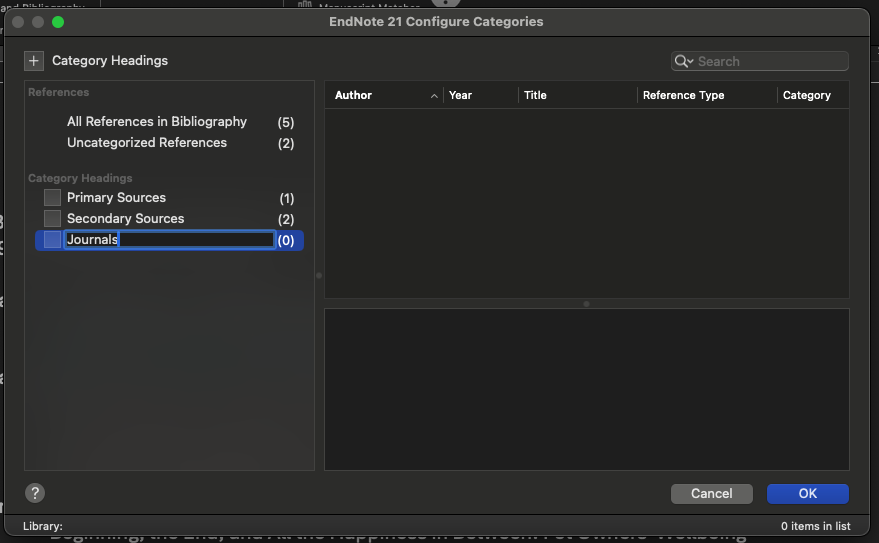
Add subheadings to your bibliography
EndNote Online
What is EndNote Online
EndNote Online is an online version of EndNote you can use to:
- Store references online,
- Sync your EndNote desktop and online libraries, and
- Share references with other people.
Types of EndNote Online Accounts
The way you create your EndNote Online account determines the features you can access.
If you create your account via the:
- EndNote Online website, you will only have access to the free version of EndNote Online, called EndNote Basic, with limited features, whereas if you create your account via:
- Web of Science you get access to more storage space and features.
If you sync your EndNote Online library with EndNote desktop, you will get access to the full version of EndNote Online which includes unlimited storage space.
See the table below for details:
| EndNote Basic | EndNote Online with Web of Science | EndNote Online with EndNote desktop | |
| How to access | Create your account via the EndNote Online website | Create your account via Web of Science | Sync with EndNote desktop |
| Referencing styles available | 21 | 6,000+ | 6,000+ |
| Storage for attachments | 2 GB | 5 GB | Unlimited |
| References you can store | 50,000 | Unlimited | Unlimited |
| Online resources searchable through EndNote Online | 5 | 6,000+ | 6,000+ |
| References you can send from databases | 9 | 500+ | 500+ |
Access EndNote Online via Web of Science
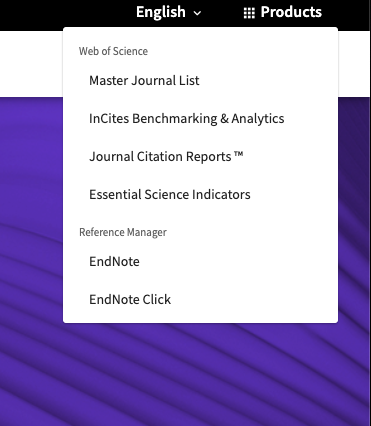
You can access EndNote Online via Web of Science, which is accessible via the A-Z ejournals and databases link on the Library Homepage:
For example, in Web of Science, select: Products > EndNote from the menu at the top of the database homepage:
Getting references into EndNote Online
There are a few ways to get references into EndNote Online:
- Adding references manually
- Searching the library catalogue through EndNote Online
- Direct exports from databases
Adding references manually
To add a new reference:
- New Reference + icon

- Select Create manually
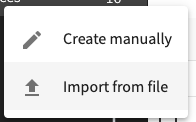
- Select the appropriate type from the Reference Type drop-down menu.
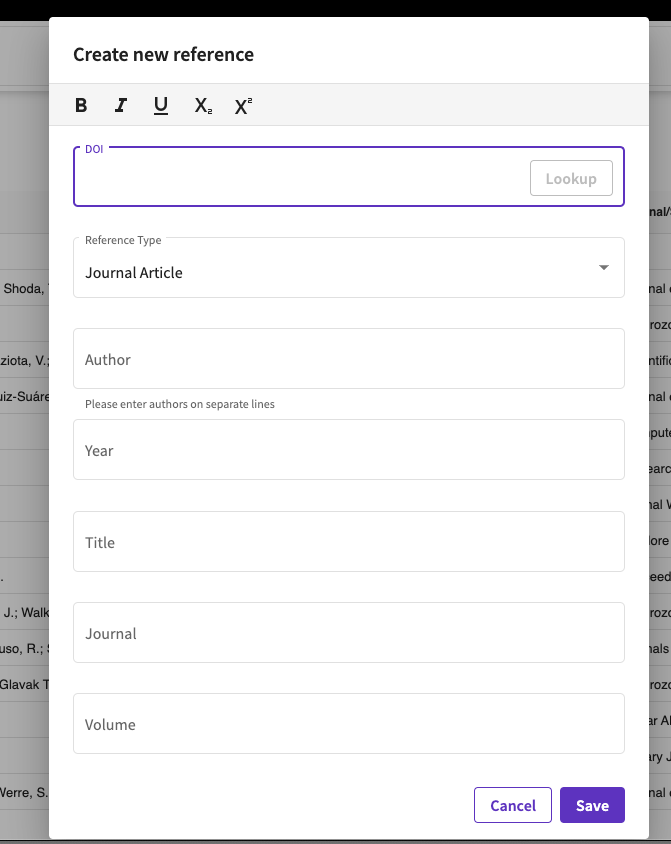
- Enter information about the item in the appropriate fields.
- Click the Save button.
Direct exports of references from databases
You can directly export references from many databases into EndNote Online.
Look for options such as Save to EndNote online:
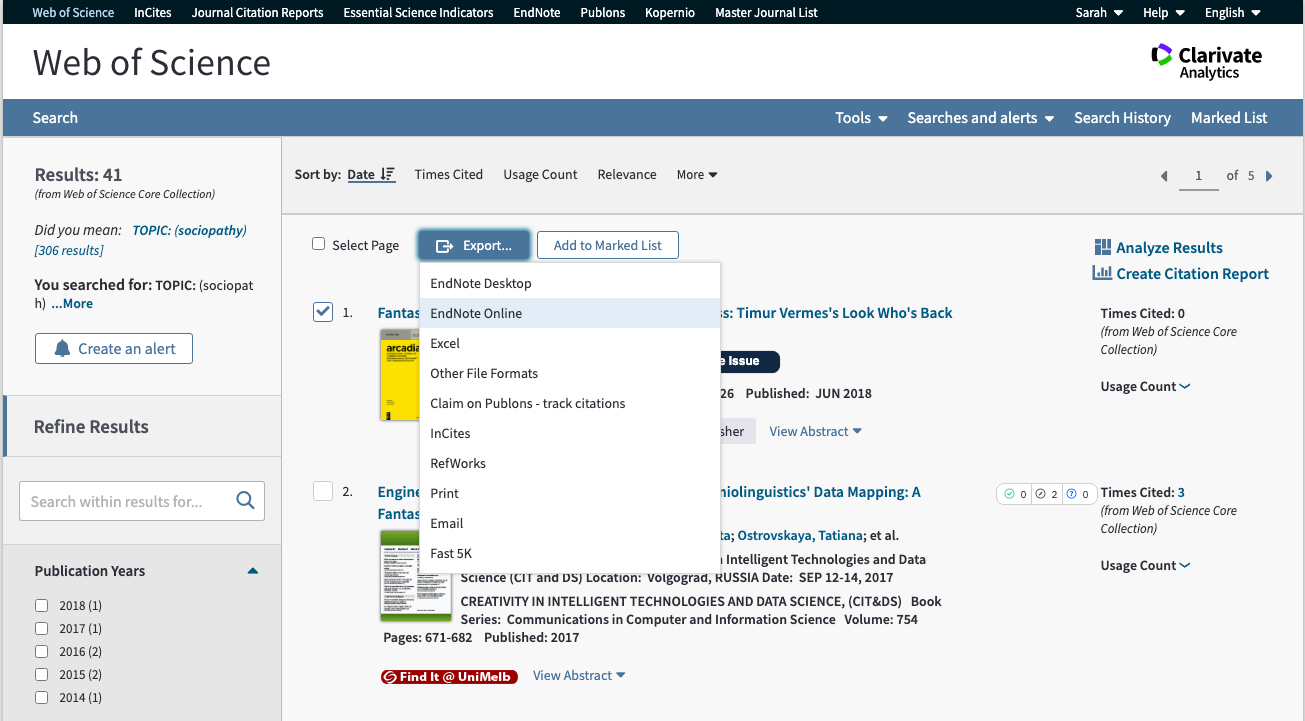
OR Direct Export to EndNote Web:
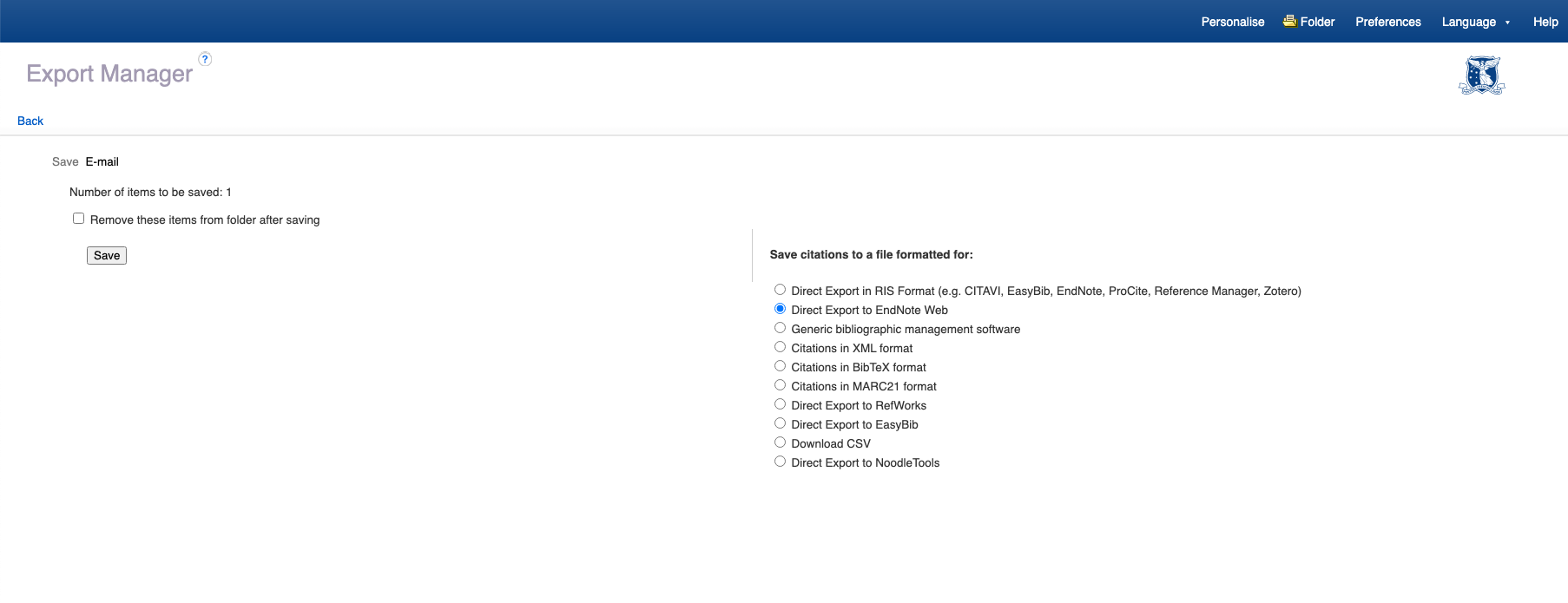
Import references
To get references from those databases into your EndNote Online library, you will have to import them:
- Search a database.
- Mark/save the records you wish to put in your EndNote Online library.
- Select a file format, such as 'RIS' or 'EndNote' (see the EndNote Online help for the format to select for specific databases).
- Save the file to your computer.
- Go to EndNote Online.
- Click on the New Reference icon and choose Import from file
- Select the file you saved to your computer (note the supported file types).
- Click the Import button.
More information on getting references from other databases into EndNote Online
Syncing with EndNote Desktop
EndNote allows you to sync your EndNote (desktop) library with EndNote Online. You can use this to work across different devices. When you sync EndNote Desktop with EndNote Online, the references in both sets are the same, and will update automatically.
You will need to:
- Create an EndNote Online account or use the Web of Science personal account to login
- Set up the Sync Preference by clicking Edit > Preferences > Enable Sync
- To Sync a library, go to Library > Sync
Reset Sync
If you want to change which library you are syncing or, (very rarely) EndNote Desktop and EndNote Online have stopped syncing correctly, you will need to reset the sync.
Before attempting the procedure below ensure that your EndNote Desktop library is backed up in a Compressed Library.
- Go to EndNote > Edit>Preferences>Sync.
- Disable all automatic syncing and then restart EndNote.
- Make sure the Trash is empty both in EndNote online as well as in EndNote desktop.
- For EndNote online, Log into your EndNote online account https://web.endnote.com/.
- Delete all references and all groups from EndNote online, with the exception of any Shared Groups or ResearcherID Groups that they may have. To do so, login to EndNote online and check the reference under All References group and click on Delete. You will need to delete the groups as well, because when they sync with EndNote desktop, the groups will sync with the desktop. To delete the groups, go to the organise tab and click on Manage My Groups. Select the groups and delete.
- In EndNote desktop, open the correct copy (backup copy) of the library. Open EndNote>Edit>Preferences>Sync. Add the string below to the end of your E-Mail Address in the sync preferences:
#!resetLocalSync
Note! This is Case Sensitive - Click OK to close the preferences, and then click the Sync button.
- EndNote will then appear to authenticate and return the prompt: “A Sync library can be linked to only one account. Do not proceed unless you intend to break the link to the original account.” This happens because EndNote is checking authentication. Click OK, and EndNote will purge any knowledge of a previous sync.
- EndNote will then display the message, “Your local sync state has been reset. Please re-enter your E-Mail Address, restart EndNote, and sync again.” Click Ok.
- Close EndNote and open it again. Close all libraries then open the library which you'd like to sync with EndNote online.
- Again go to your sync preferences; enter your username/password and setup automatic sync settings.
- When you next click Sync, you will once again get the message “A Sync library can be linked to only one account. Do not proceed unless you intend to break the link to the original account.” Click OK.
- You will be prompted to make a backup. While this step is not required, it never hurts, follow the onscreen prompts to backup.
- A complete sync will then begin.
Organise your references into groups
EndNote Online allows you to organise your references into groups.
This makes it easy to share them with colleagues.
To create a group:
- Go to My Groups and click on the + icon to add a new group
- Select Create New Group
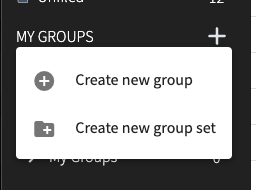
- Enter a name in the text box provided.
- Click Create.
Cite while you write plug-in
Before you can insert in-text citations or footnotes into your Microsoft Word documents you will need to ensure you have the EndNote Cite While You Write plugin installed.
If you use EndNote Desktop and EndNote Online:
If you are using EndNote desktop, DO NOT download and install the Cite While you Write plugin as it will already have been installed when you installed EndNote desktop.
You simply need to select the EndNote Web option in the toolbar in Microsoft Word:
- Go to Microsoft Word
- Go to the EndNote toolbar
- Select 'Preferences' and the 'Cite While You Write Preferences' dialog box will open.
- Select the 'Application' tab.
- Select the option: EndNote Online or EndNote Web.
- Make sure your email address and password for EndNote Online are correct.
- Click the 'OK' button.
- The EndNote tab in Word should then change to the 'EndNote Web' or 'EndNote Online' tab.
If you are ONLY using EndNote Online:
Download and install the Cite While You Write Plug-in for Microsoft Word
Before you get started: turn Instant Formatting off
If you are working on a large document, it is a good idea to turn instant formatting off in Word before you start inserting citations, as this feature can be slow if you insert many citations:
- Open Microsoft Word.
- Select the EndNote tab.
- Select Preferences.
- Untick the checkbox: Enable Instant Formatting on new Word documents and click the OK button.
Inserting In-text citations in MSWord
To insert a citation into a Microsoft Word document:
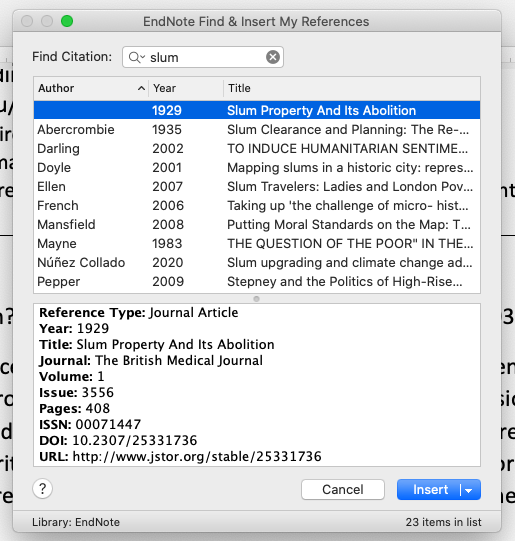
- In Microsoft Word, go to the EndNote tab.
- Click the Insert Citation button.
- Enter some search terms and hit the return key on your keyboard, or click the Find button.
- Select the reference(s) you wish to use.
- Click the Insert button.
Insert footnotes
You need to use Microsoft Word to insert the footnote and then insert a citation:
- In Microsoft Word, select the References tab.
- Click the Insert Footnote button.
- Use the instructions above for inserting in-text citations.