Library Systems Update
Navigation
Systems Update
The current University of Melbourne Library System is being replaced with a new integrated Library Management System and Readings Online Platform from semester 2, 2026.
What's happening:
We will be replacing the existing library system platform that supports Library Search, Readings Online and Inter-library Loans with a next generation platform designed to improve user experience and enhance search and discovery across our extensive print and digital collection.
-
Library search and discovery:
The base platform of the new Library Management System will be fully upgraded and integrated with the catalogue, Library Search, Inter-Library Loans and Readings Online in phases. The launch date for the new Interlibrary Loans functions is 23 June 2026. The launch date for the new Library Search is 29 June 2026.
-
Readings Online:
The new Readings Online platform delivers a faster, more intuitive way to build reading lists, fully integrated with the new Library Search. Subjects commencing from Semester 2, 2026 onwards will use the new Readings Online platform. Your semester 2 reading lists have already been migrated to the new platform. You will have access from 30 June to revise and update your reading lists. Please do not make changes before this date as they will not be reflected in the new platform.
-
Interlibrary Loans:
Advanced functionality will improve automated and streamlined processing to supply article and book requests from other libraries. UoM staff and students will be able to submit borrowing requests from other institutions via the new library platform. The launch date for Inter-library Loan borrowing is 23 June 2026.
-
Service Impacts
While we upgrade the Library Sytstem from 19-22 June the following services will be temporarily affected.
- Fine payments will be unavailable.
- Self Check Out and Check In Machines will be unavailable.
- Borrowing and returns will be available. You can borrow items at service desks and return items via manual returns chutes or via service desks. However, transactions will not appear in your Library account until 23 June.
- New registrations for Community memberships will be unavailable until after July.
We appreciate your patience during this time as we work to improve our systems and services.
Aim:
Our goal is to deliver this change with minimal interruption to services. We’re committed to working closely with the University community throughout implementation, and we will provide opportunities for input, feedback and collaboration as the project progresses.
Contacts
For Library liaison service queries please contact your Faculty Librarian.
For Inter- library loans queries please contact ill-library@unimelb.edu.au.
For Readings Online information and service advice please contact readings-online@unimelb.edu.au.
Frequently Asked Questions
-
Scholarly Services manages a diverse and significant collection of print and digital resources that are used extensively to support teaching, learning and research at the University. In 2025, following a competitive selection process, the University selected the Clarivate Library Management and Readings Online platform to replace its existing system. Underpinned by next generation technology designed to enhance user experience, support equitable access to subject readings and significantly uplift search and discovery at scale across extensive print and digital collections, the new Library Management System provides strengthened data security and business continuity of core library services. The new Library Management and Readings Online system will provide improved experiences for our students, staff and external visitors in a number of ways:
- A modern, user-focused library management system
- Faster and more efficient searching: Quickly locate resources, saving time and improving efficiency
- Enhanced security: Stronger protections for data and user access
- Greater business continuity: More reliable systems mean fewer disruptions to services
- Reduced costs: Lower software licensing and maintenance costs
- Simplified technology architecture: Improved integration with related University of Melbourne systems and removal of dependencies on outdated tools.
-
The new Library system will be available to staff and students on 29 June (after exams).
Readings Online will be available to teaching staff from 30 June, and students on 17 July.
Interlibrary Loans for physical items will pause on 22 May, copy requests pause on 15 June, and all requests will resume on 23 June.
-
No. Students and staff will continue to access these services in the same way they do now:
- Library Search via the Library website
- Readings Online via the Canvas Learning Management System (LMS)
- Interlibrary Loans via existing request pathways
The change relates to the underlying platform, rather than how these services are accessed and delivered. Core functionality will remain familiar.
-
You may notice:
- A refreshed Library Search experience when searching the print and digital collections
- A more intuitive Readings Online interface for Semester 2, 2026 subjects
- Convenience in placing requests to borrow items from other institutions
-
For Semester 2 2026 subjects, existing reading lists will be migrated to the new platform by Scholarly Services between April and May. Subject Coordinators will not need to recreate their subject reading lists. Instead, they will be asked to review and confirm migrated lists ahead of teaching.
Engagement with Subject Coordinators has already commenced to support early awareness and planning. Detailed guidance and support materials will be provided in the lead-up to the launch of the new Readings Online system on 30 June for Teaching Academics and 17 July for students.
-
The new platform will enhance Library Search and resource discovery, improving access to the digital and print collection while strengthening system reliability and integration across University enterprise platforms.
The Library Search function will continue enabling users to find and discover resources across electronic databases and repositories.
The Inter-Library Loan borrowing service will continue as normal. Any temporary service impacts during the transition will be communicated clearly in advance.
-
Our priority is to minimise interruptions to any services.
The Interlibrary Loans and Library Orders services will temporarily pause during the Library’s transition to a new system, from 23 May to 22 June.
Interlibrary loans
Physical loan requests will close on 22 May and digital copy requests will close on 15 June, while existing requests will continue to be processed.The Library will consider urgent requests received 15 June to 22 June. These requests will be assessed on a case-by-case basis.
Full service resumes on Tuesday 23 June.
For more information, refer to the Library’s Interlibrary Loan website
Library Orders
If possible, please submit your order requests by 22 May via the Library Orders form.During the transition period, 23 May–22 June, order requests can continue to be submitted via the Library Orders form, however only those marked urgent will be considered for processing.
Full service for Library Orders will resume from 23 June.
Contact for any enquiries: orders-library@unimelb.edu.au
-
Yes, if you have saved searches, saved records, a browsing history you’d like to keep, or books on request or hold, follow the relevant steps in this guide before 22 June.
-
University students and staff will automatically gain access to their library account via their Single Sign On credentials.
All external borrowers (borrowers on paid, complimentary, and reciprocal memberships) will need to follow these steps to reset their library account password the first time they log in from 29 June.
Save Your Discovery and Catalogue Settings
The University of Melbourne is moving to a new library system.
If you have saved searches, saved records, a browsing history you’d like to keep, or books on request or hold, follow the relevant steps in this guide before 31 August.
Books currently on loan are automatically listed in the new library system.
You need to follow these instructions before 31 August. After this date you will no longer be able to access your saved searches, records, borrowing history or book requests or holds in the old system.
Save my ‘Saved Searches’ in Discovery
You need to follow these instructions before 31 August. After this date you will no longer be able to access your saved searches, records, borrowing history or book requests or holds in the old system.
-
Start at the Library Home page on the Discovery tab, and click the Advanced Search link.

-
Click Saved, then the Searches tab.
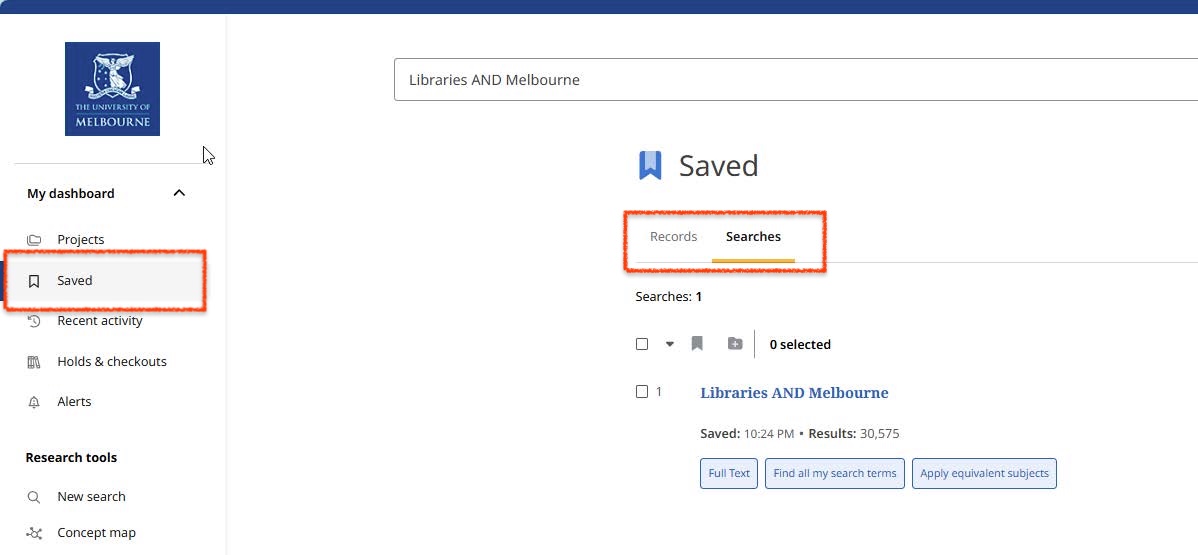
-
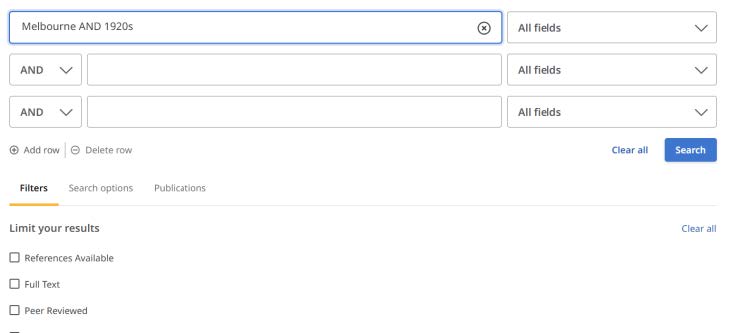
Click your saved search, then copy the search logic.
For more complex searches, click Advanced Search to easily view and copy the logic.

-
Paste and save your search logic in Word, OneNote or other preferred text app. You'll refer to this in the next step.
-
From 29 June access the new library search and manually rebuild your search by referring to the information you saved in the previous step.
Save my ‘Saved Searches’ in the Catalogue
-
Start at the Library Home page on the Catalogue tab, then click on the Catalogue link.

-
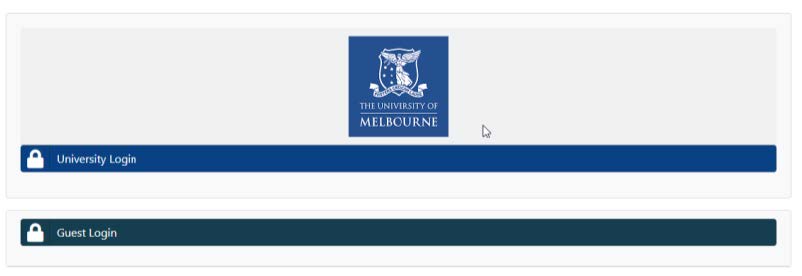
Click Login, select University Login, and log in to your account.
-
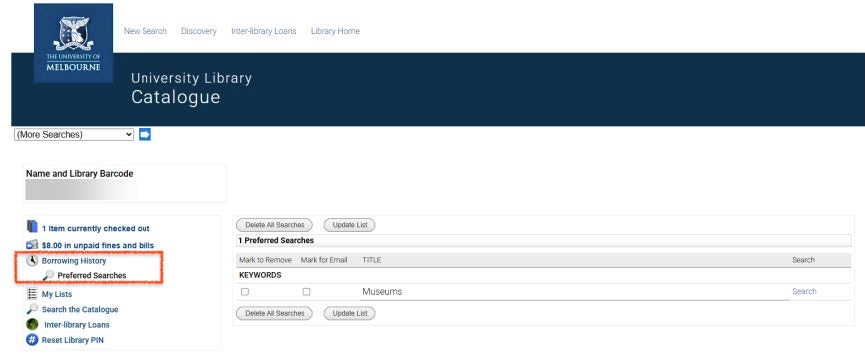
Click Preferred Searches to view your saved searches.
-
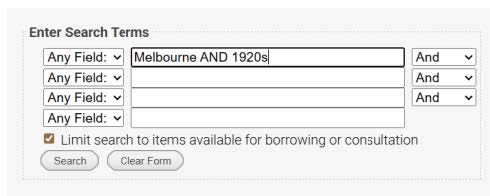
Click on your saved search, then copy the search logic.
Look for Search box terms and Limits (date, format, location).

For more complex searches, click MODIFY SEARCH to easily view and copy the logic:
-
Paste and save your search logic in Word, OneNote or other preferred text app. You'll refer to this in the next step.
-
From 29 June access the new library search and manually rebuild your search by referring to this information you save in the previous step.
Save my records in Discovery
For best long-term use, export to a reference manager such as EndNote, Zotero, or a RIS file.
-
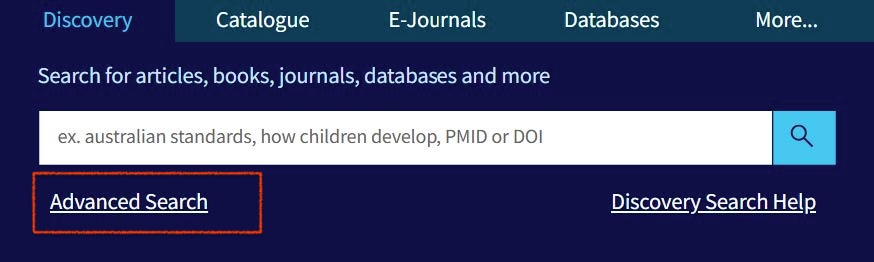
Start at the Library Home page on the Discovery tab, and click the Advanced Search link.
-
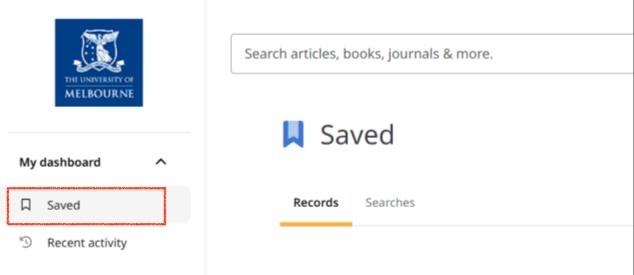
Click Saved, then the Records tab.
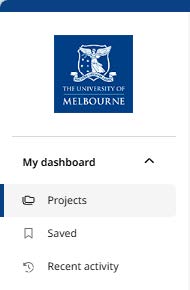
If you organised your saved records into folders, first click Projects and open the folder:
-
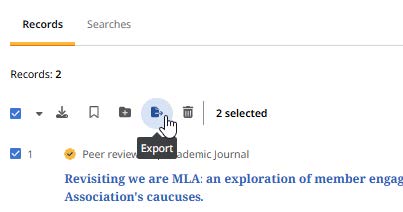
Select your saved records and click Export.
-
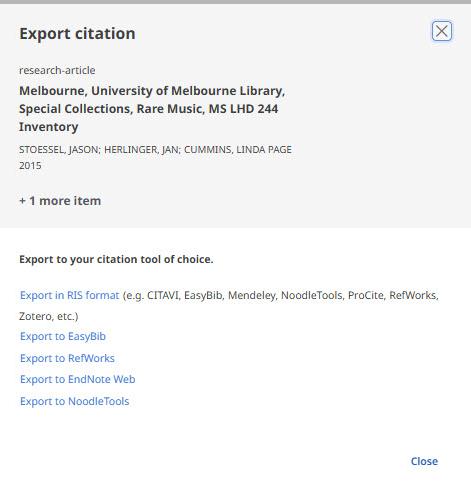
Select your preferred export format and save the file.
Save my records in the Catalogue
-
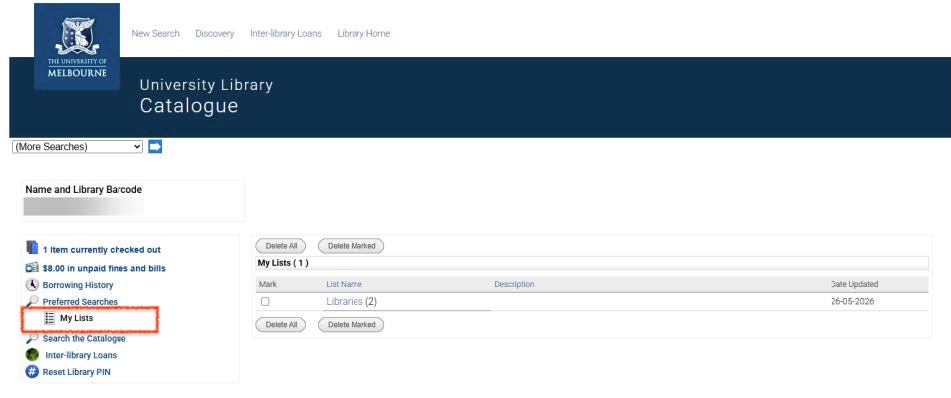
Log in to your library account and navigate to My Lists.
-
Click to open a list.
-
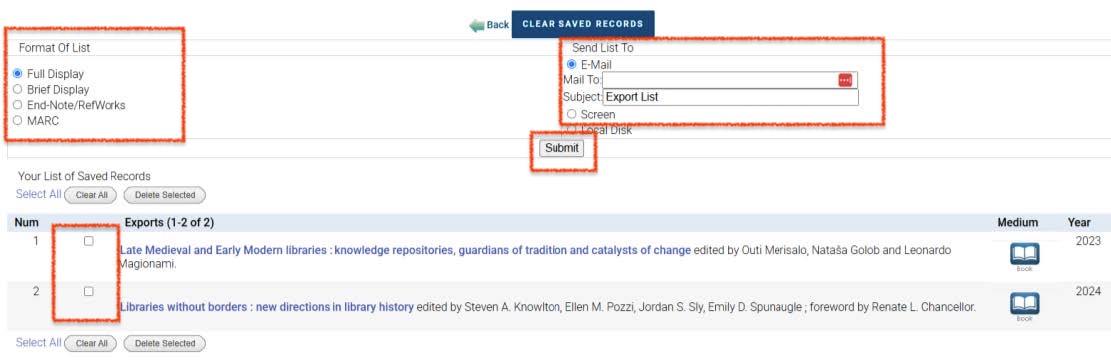
Export your records:
- Select the records you want to include in the export
- Select your preferred list format
- Enter your email to receive the exported list
- Click Submit.
Save my borrowing history in Catalogue
To save your borrowing history, you must have previously enabled ‘Borrowing History’ in Catalogue.
-
Log in to your library account and navigate to Borrowing History
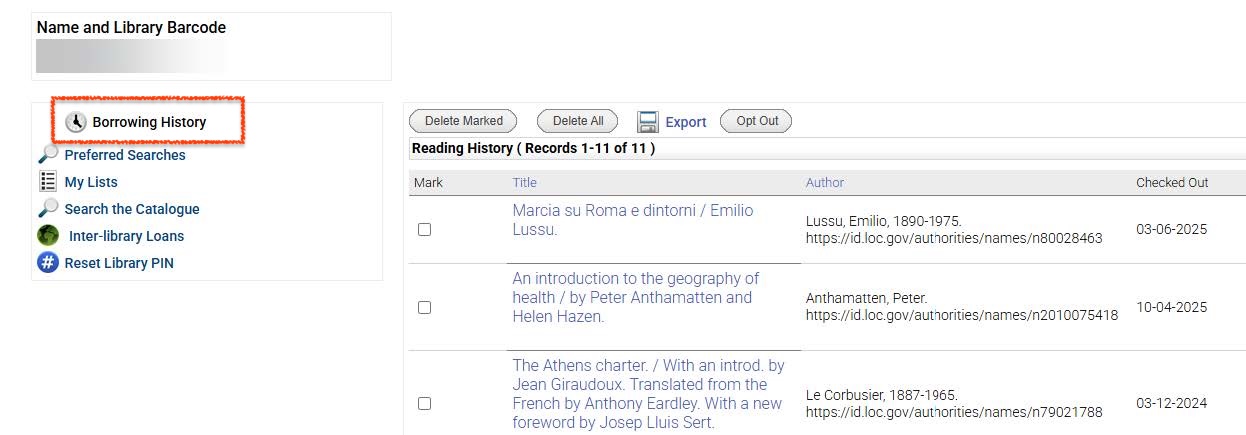
Option 1: Use your Browser’s Print, Export as PDF, or Save as PDF function (usually found under the ‘File’ menu) to save the reading history record.
Option 2: Use your mouse to Select (highlight) the list of items in the Reading History, then copy and paste into your preferred app, for example, MS Word, Google Docs, Excel (recommended for sorting), Notes.
Save my book requests or holds in Catalogue
-
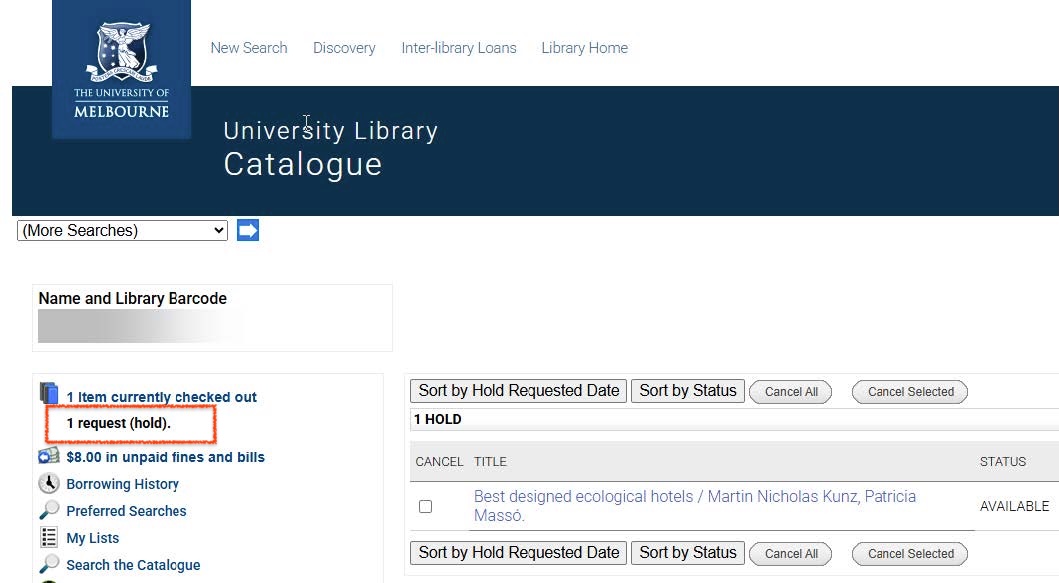
Log in to your library account and navigate to the Holds/Requests section
Holds/Requests are only displayed in the menu if your account has one or more holds or requests.
-
Copy or make a note of your listed requests and holds.
-
From 29 June access the new library search and follow these steps to manually add the save information in the new system:
- Find the record using Library Search
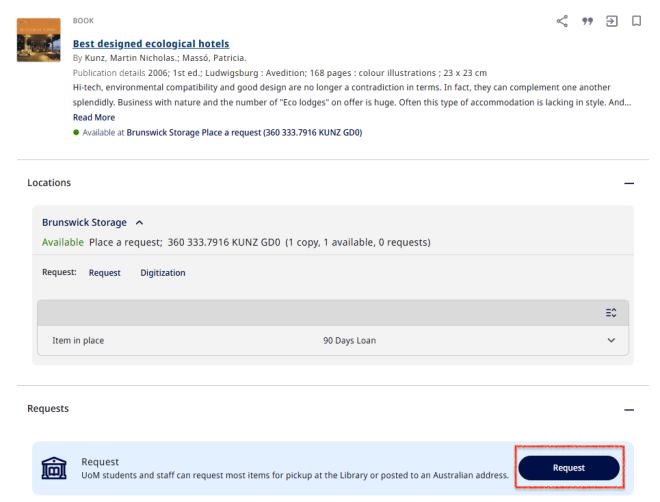
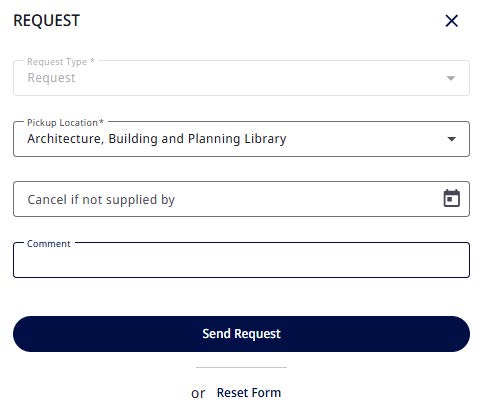
- Click Request to open the REQUEST form.
-
Complete the relevant information, then click Send Request.
Library Account Login for Community Members
The University of Melbourne is implementing a new library system from 29 June 2026.
This next generation system is designed to improve user experience and enhance search and discovery across our extensive print and digital collection.
You can find out more on our Library Systems Update webpage.
What do I need to do?
If you are a community member, please follow these instructions on how to log in to your Library account from 29 June 2026.
Who are community members?
‘Community' is a new umbrella term to encompass all external memberships, including Alumni.
Instructions
-
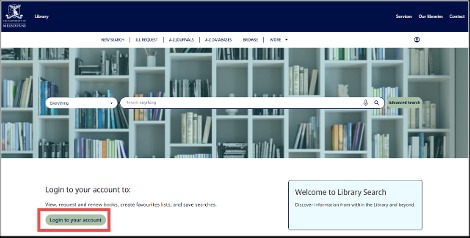
On the Library Search page click ‘Login to your account’.
The new link will be made available from 29 June.
-
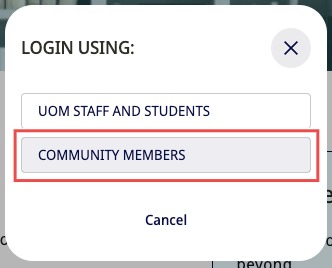
Select Community Members.
-
Enter your existing library account email and click Send.
If you’re unsure which email to enter please contact the library.
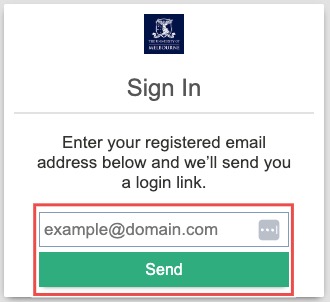
You will receive an email from no-reply@unimelb.edu.au with your login link
-
Open the email and click the link to log in and access your library account.
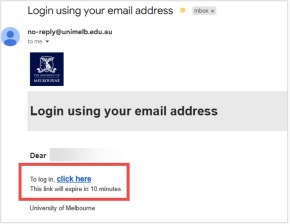
The link is valid for 10 minutes.
Download as PDF
For more help please contact us