Save Your Discovery and Catalogue Settings
The University of Melbourne has a new library system.
If you have saved searches, saved records, a browsing history you’d like to keep, or books on request or hold in the old system, follow the relevant steps in this guide before 31 August.
Books currently on loan are automatically listed in the new library system.
You need to follow these instructions before 31 August. After this date you will no longer be able to access your saved searches, records, borrowing history or book requests or holds in the old system.
Save my ‘Saved Searches’ In Discovery
-
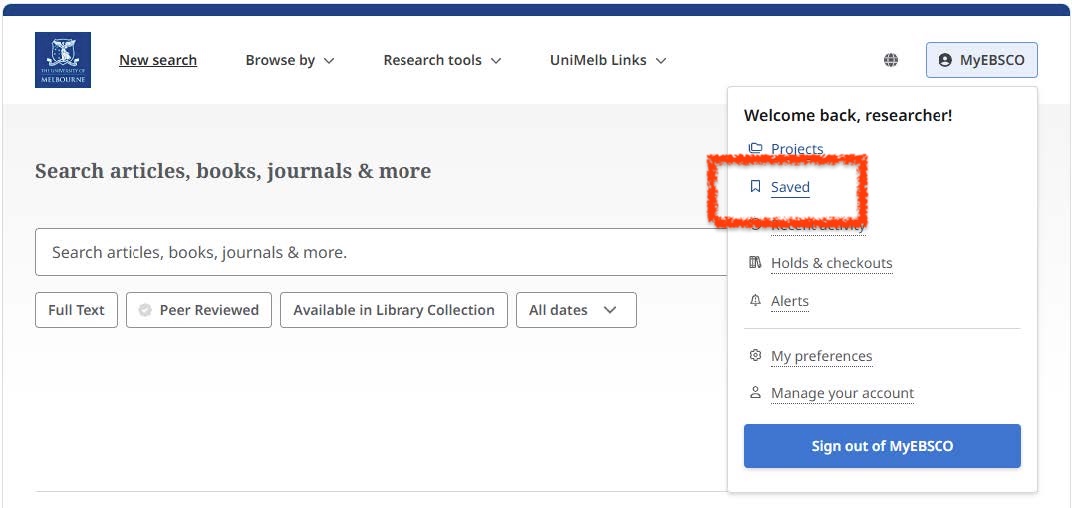
Start at the old Discovery Search page, and click Saved on the MyEBSCO menu.
-
Click the Searches tab to view a list of your saved searches.
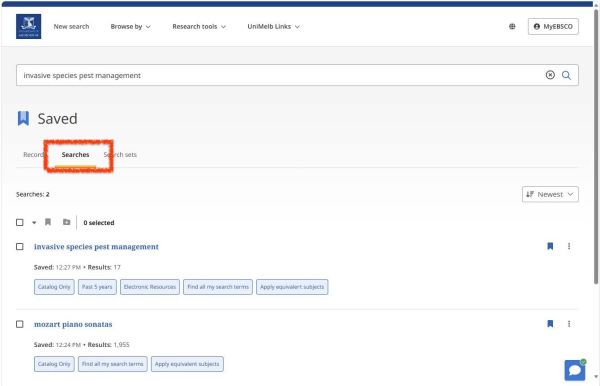
For each listed search, the search parameters are listed in blue boxes. -
Copy the displayed search parameters into Word, OneNote, or other preferred app.
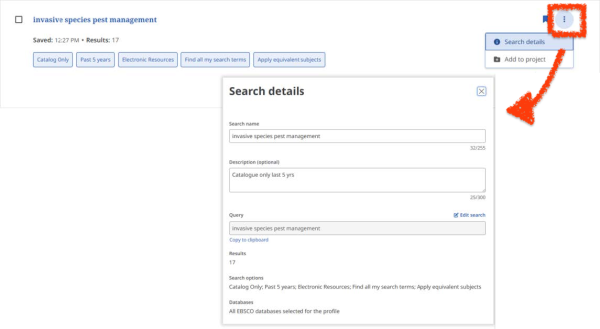
You can view more Search details through the 3-dots menu.
-
In the new library system, manually rebuild your search by referring to the information copied in the previous step.
Save my ‘Saved Searches’ In Catalogue
-
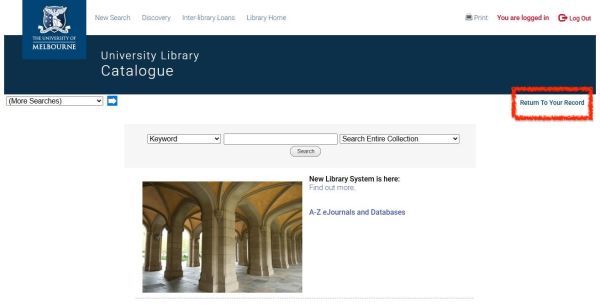
Start at the old Catalogue Search page, and click Return To Your Record.
-
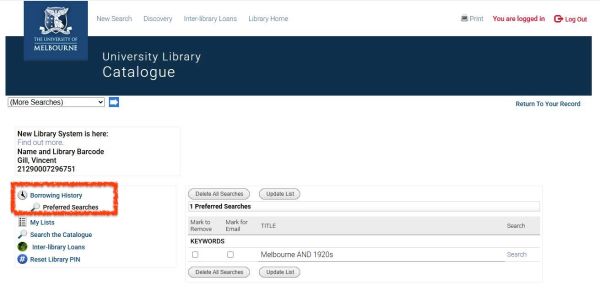
Click Preferred Searches to view your saved searches.
-
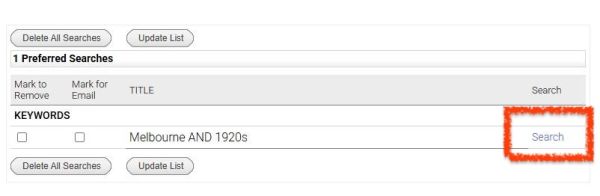
Click Search to run a listed search.
-
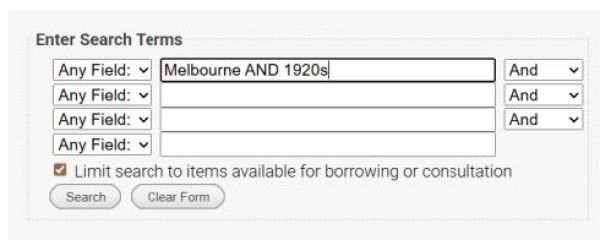
Copy the search logic into Word, OneNote, or other preferred app.
Look for Search box terms and Limits (date, format, location).

For more complex searches, click MODIFY SEARCH to easily view and copy the logic:
-
In the new library system, manually rebuild your search by referring to the information copied in the previous step.
Save my records In Discovery
-
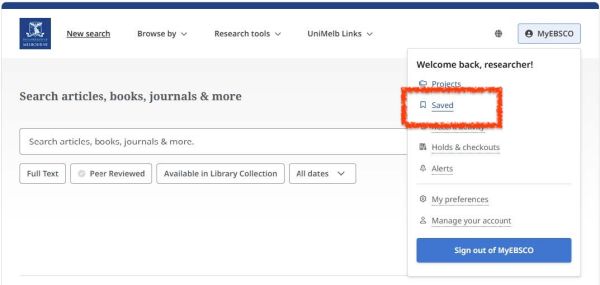
Start at the old Discovery Search page, and click Saved on the MyEBSCO menu.
-
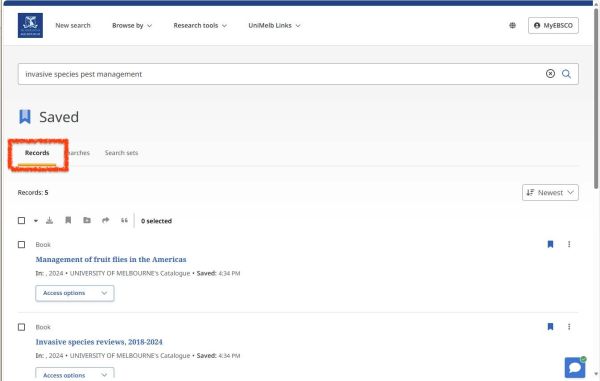
Click the Records tab to view a list of your saved records.
-
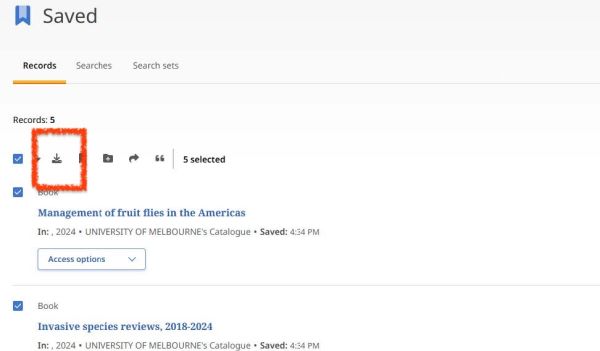
Select relevant saved records and click the Download icon.
-
Select your preferred export format and click Download.
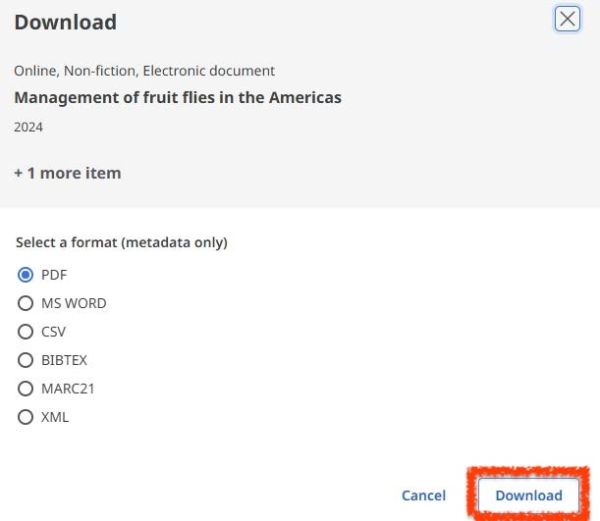
The file is downloaded to your default Downloads location.
Save my records In Catalogue
-
Start at the old Catalogue Search page, and click Return To Your Record.
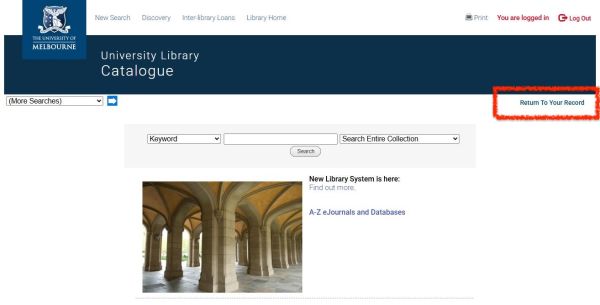
-
Click My Lists, then click a list to view its records.
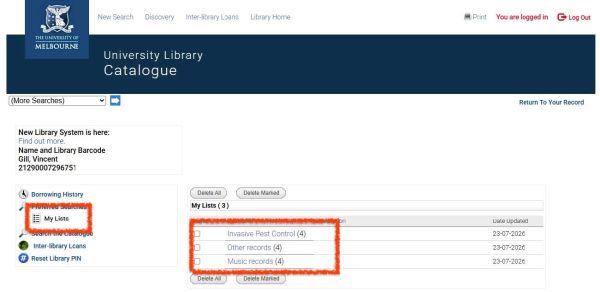
-
Click Export List.
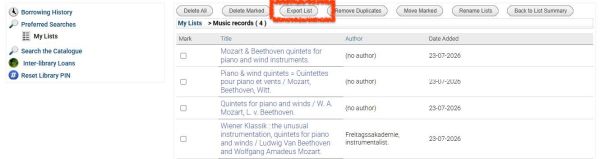
-
On the Export Options screen:
- Select the level of detail you prefer:
- Full Display provides full details of the recore
- Brief Display provides Title and Imprint only.
- Enter your email address
Alternatively, select Screen to view details in your browser window only. - Select the records you want exported
- Click Submit.
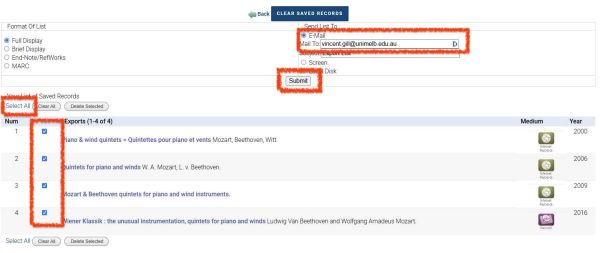
Record details are emailed or displayed on screen, as per your selected option - Select the level of detail you prefer:
Save my borrowing history in catalogue
To save your borrowing history, you must have previously enabled ‘Borrowing History’ in the old Catalogue system.
-
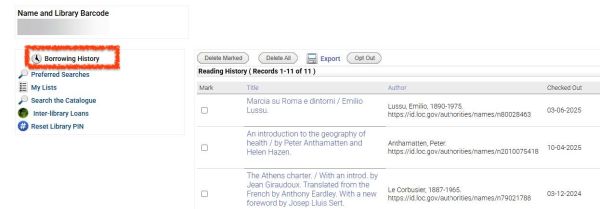
Start at the old Catalogue Search page, and click Return To Your Record.
-
Click Borrowing History
-
Two Options:
- Option 1: Use your Browser’s Print, Export as PDF, or Save as PDF function (usually found under the ‘File’ menu) to save the reading history record.
- Option 2: Use your mouse to Select (highlight) the list of items in the Reading History, then copy and paste into your preferred app, for example, MS Word, Google Docs, Excel (recommended for sorting), Notes.
Save my book requests or holds In Catalogue
-
Start at the old Catalogue Search page, and click Return To Your Record.
-
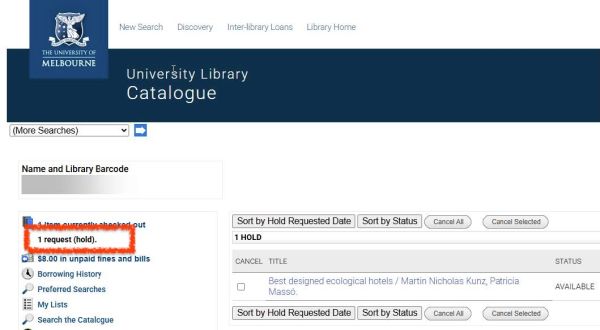
Navigate to the Holds/Requests section
Holds/Requests are only displayed in the menu if your account has one or more holds or requests.
-
Copy or make a note of your listed requests and holds.
-
Access the new library search and follow these steps to manually add the saved information into the new system:
- Use Library Search to find the record
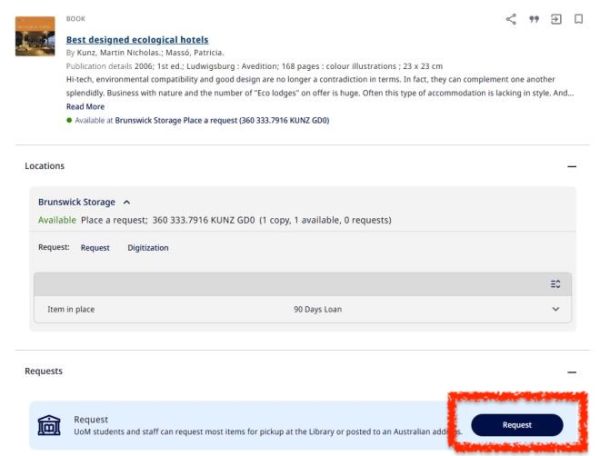
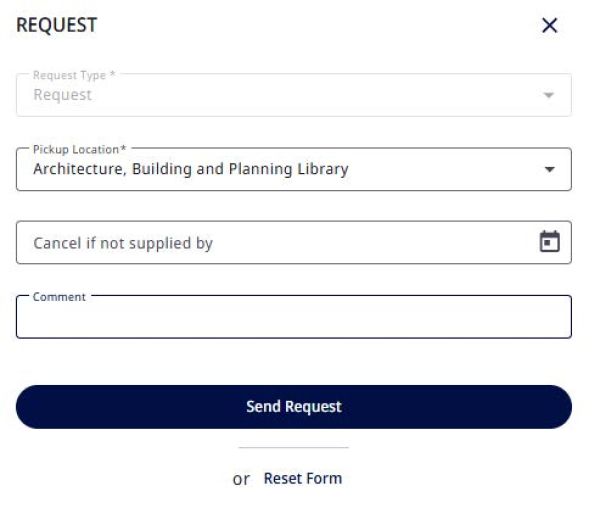
- Click Request to open the REQUEST form.
- Use Library Search to find the record
-
Complete the relevant information, then click Send Request.