Using groups
Sync your library to access it anywhere, join and create groups to work collaboratively. Find the options for exporting your references.
Create and join group libraries
To use the group function you must set up an account at Zotero.org.
From your desktop library:
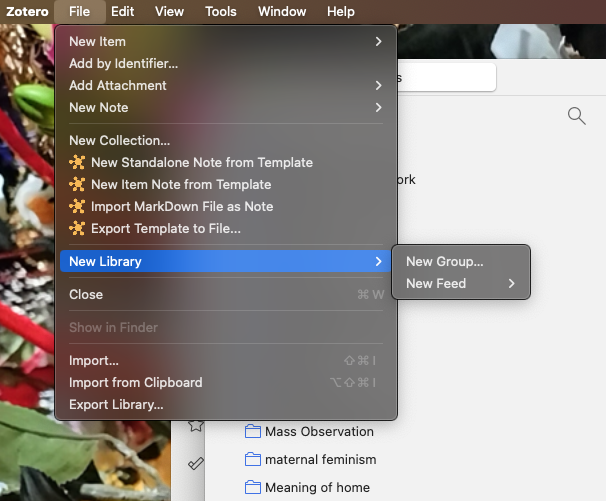
To set up a group, click on File - New Library - New Group
Or from the Zotero web site, click on the Groups tab and select Create new group
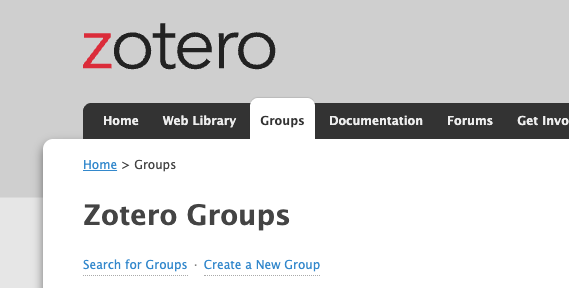
Find out more about how they work on the Zotero Groups page. Join existing groups by searching for other members or group names, or create your own group to share references with other.
You can customise the privacy and edit access level of your Zotero groups.
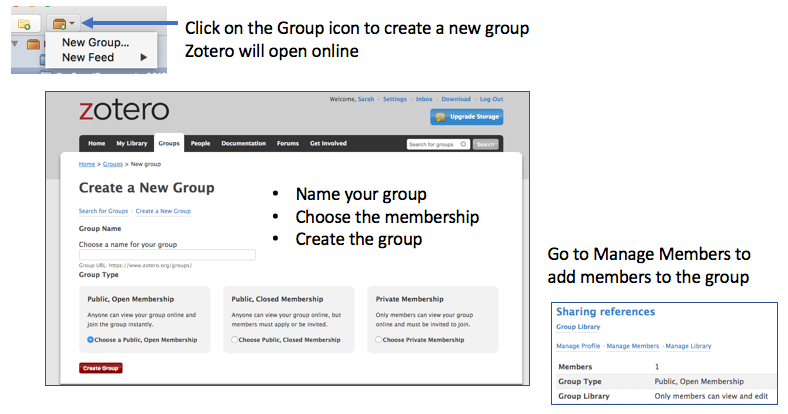
Add members by adding their email addresses.
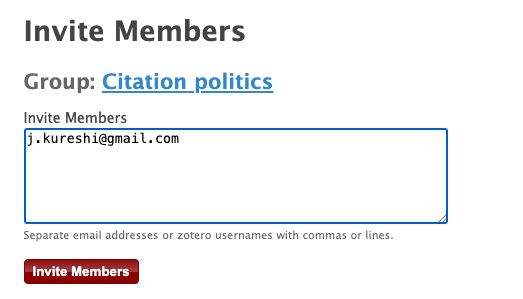
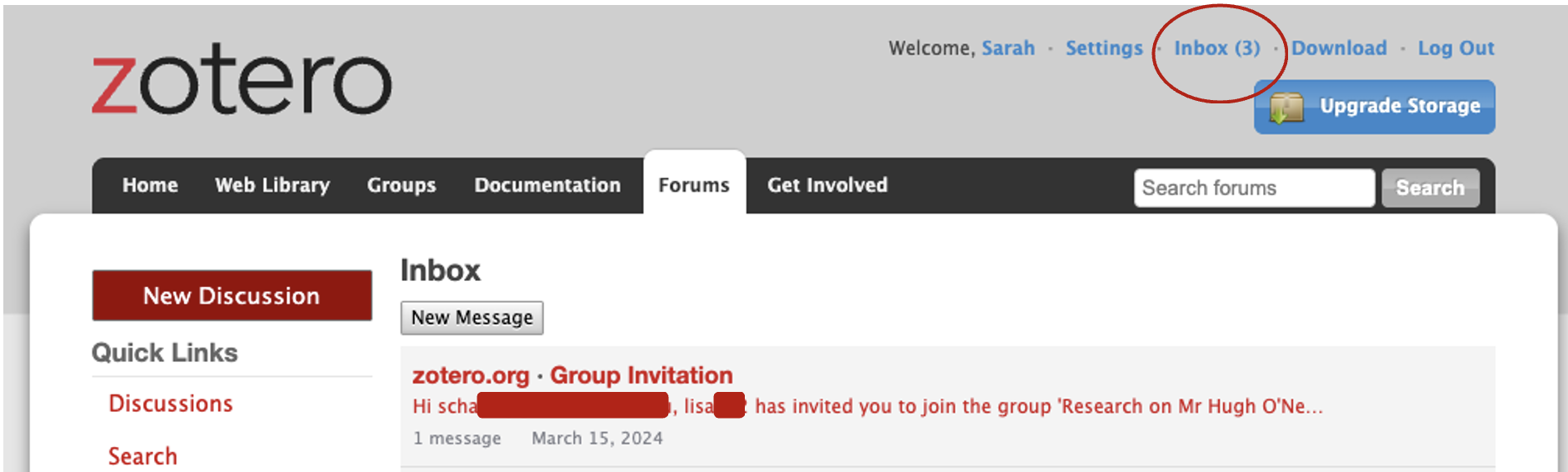
Note: they won't receive an email to that address notifying them of the invitation, it goes to the Zotero account inbox.
Items can be added to the group library from the desktop connector, just select the group folder.
All library users can access PDF attachments in a private library.
NOTE: Group libraries can cause storage limits to be reached, and other storage options do not work if all members of a group need to access the items directly from the group library.