Syncing, storage and exporting
Sync your library
Creating a Zotero online account allows you to sync your library to the cloud and access it on any computer.
Data syncing will share your library entries, notes, tags and links between your computer(s) and Zotero servers. You can also see your library online at Zotero.org. There is no storage limit for data syncing.
File syncing will also share any attached files (PDF, audio, images etc). There is a storage limit of 300 MB per user, if your attachments are more than this size, your library will no longer sync between devices. You can purchase additional storage from Zotero, or look at alternative methods to share your files across devices further down this page.
Create an Online Account
- Go to the Zotero homepage and click “Register”.

- After registering, Zotero will send a confirmation email
- Check your email and validate it by clicking on the link
Sync Zotero Library with your online account
- Open Zotero Settings (within Edit menu)
- Select “Sync”
- Enter your username and password and click Set up Syncing
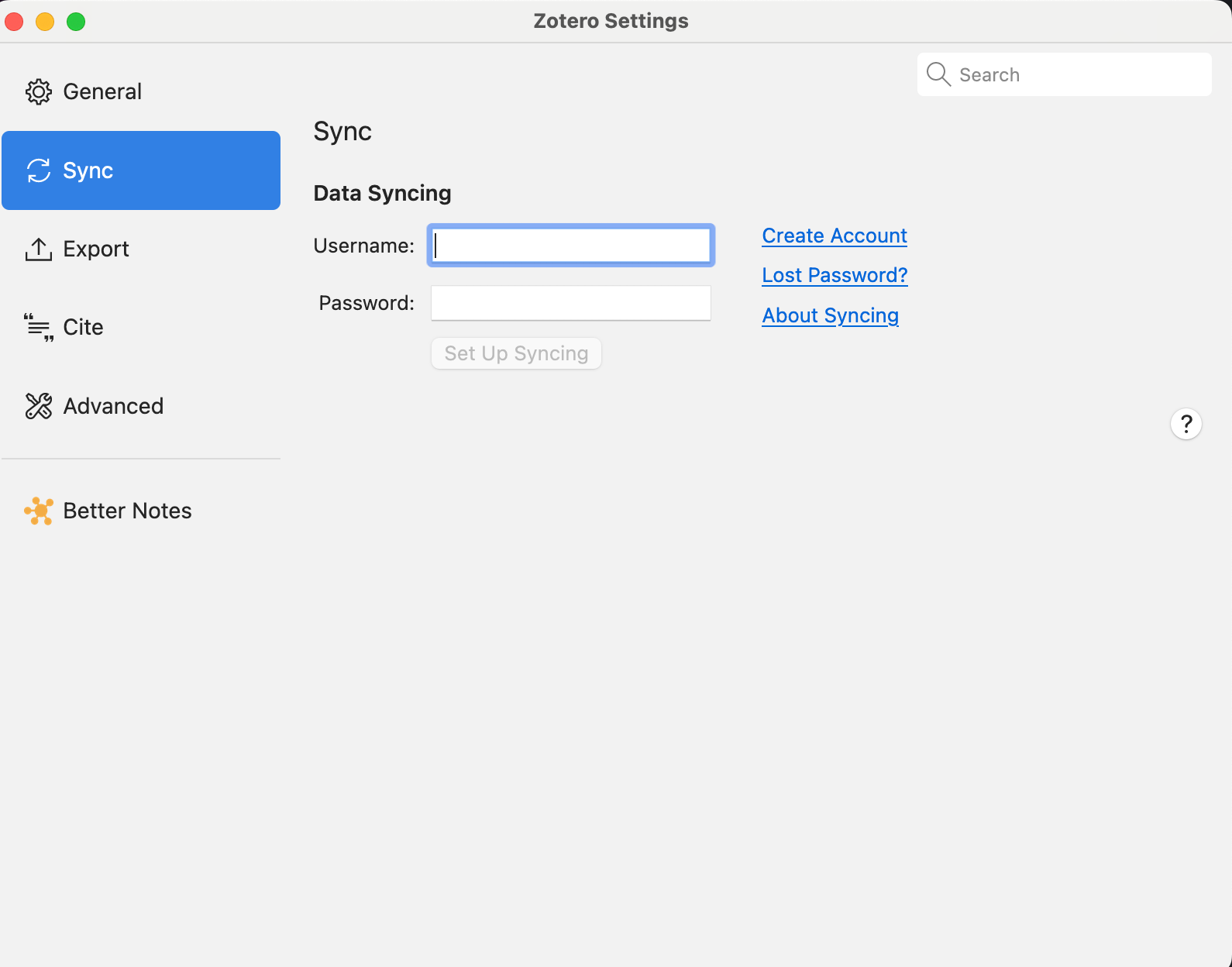
Now any time you save anything, it will sync with the Zotero online. If you login to Zotero on a computer that isn't your own, you can set up syncing temporarily. Unlink your library after to ensure no one else can access your library

Create reports
Zotero offers many export options for your references. Select multiple items in the centre column, or select a collection in the left hand column.
Export as spreadsheet, BibTeX, XML, RIS or other file format
After selecting the items you want to export:
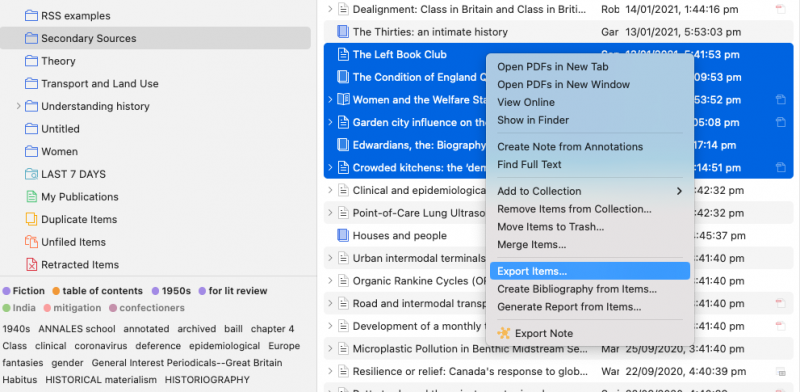
- Right-click (ctrl-click on OS X) on your selection and select ‘Export items’
Simple reports
Reports are simple HTML pages that give an overview of the item metadata, notes, and attachments of the selected items. You can print them, post them to the web, and email them. After selecting the items to include in your report:
- Right-click (Mac: ctrl-click) on your selection and select ‘Generate Report from Items’
- A new Zotero window will open which you can print, save or post online.
Reports are sorted alphabetically by title. For options on customising your reports, see the Zotero Reports Documentation.
Quick Copy
You can quickly generate a reference list in Word by highlighting a selection of items in your Zotero library and dragging and dropping (or copying with Ctrl-Shift-C) into an open Word file. Holding Shift while you drag and drop (or using Ctrl-Shift- A) will export citations or footnote style references.
To choose the Citation Style for Quick Copy output, go to Zotero Settings > Export and choose your style from the dropdown menu.
Customise your file storage
Associated PDFs or shapshots of webpages can be added to Zotero as a local copy, or you can link to a version saved elsewhere.
To create a new item with a link to a PDF:
- Click the page with a + icon at the top of the centre panel to create a new item
- Create the item record
- Click on the Attachment icon.
- Select Add Link to file
- Select the file from your file manager
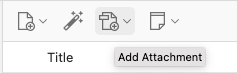
To add links to documents saved elsewhere to existing records:
- Right click on your item
- Select Add Attachment
- Choose 'Web link' (for web location) or 'Attach Link to File' (for files stored elsewhere on your computer)
Using Cloud storage to sync files across devices
University of Melbourne students have cloud storage available via their University OneDrive account. You can link files (PDFS etc) to your Zotero library in the Settings menu.
- Create a folder in OneDrive
- Within Zotero, go to Settings (within Edit menu) > Advanced > Files and Folders
- Scroll to Linked Attachment Base Directory
- Select Choose your base directory (the location where you want to store your linked PDFs etc)

These instructions are or storing PDF attachments in a custom location. Storing you Zotero library in the cloud is not recommended.
The data directory is where the metadata for your library is stored. It should be stored on your computer, not in the cloud, so you can leave it at the default setting, or move it to another location on your computer.
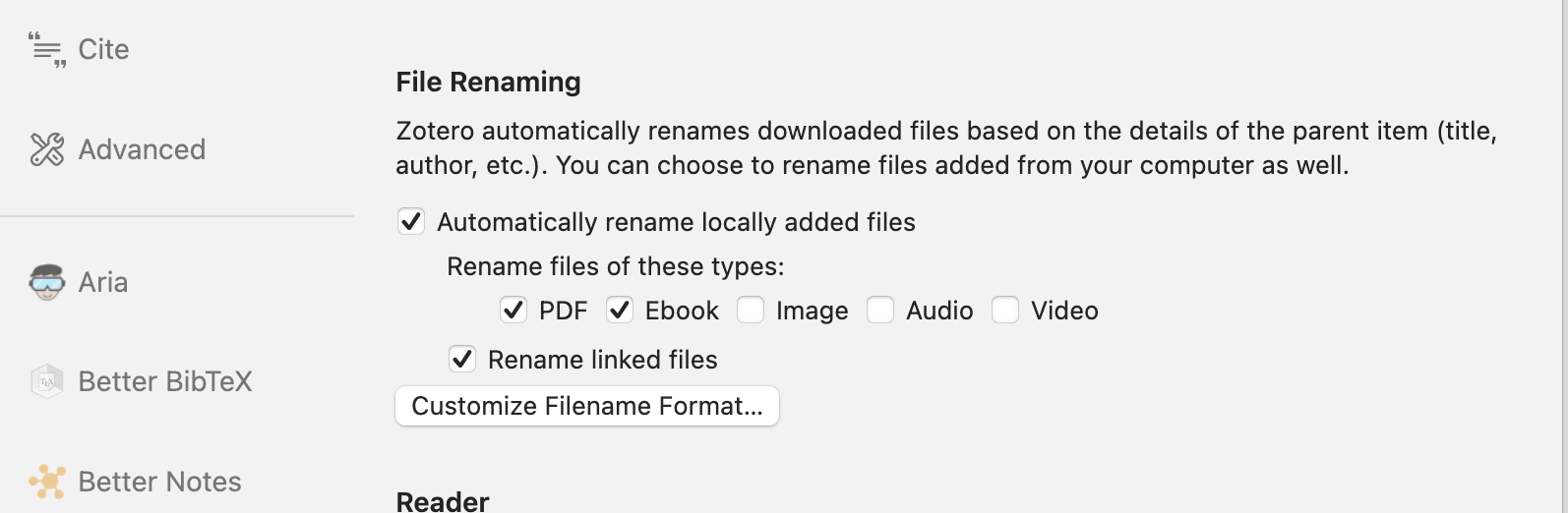
To assist with managing your PDF files, you can also set Zotero to rename them, so they are easily identifed if you need to look in the linkd attachment directory. To set up file renaming:
- Go to Settings and select General
- Under File Renaming, select Automatically rename locally added files
- Select the type of files you are likely to add to your library (book, PDF etc)
Use Zotmoov to store files in the cloud
Zotmoov is a plugin that allows storage of PDFs in cloud-based locations. It also allows files to be renamed and organised in a logical way. ZotMoov will automatically move files whenever they are imported into Zotero.
To install it once you have downloaded it, go to Zotero Tools - Plugins then install by clicking on the gear icon. ZotMoov will then appear as an option in the Settings pane.
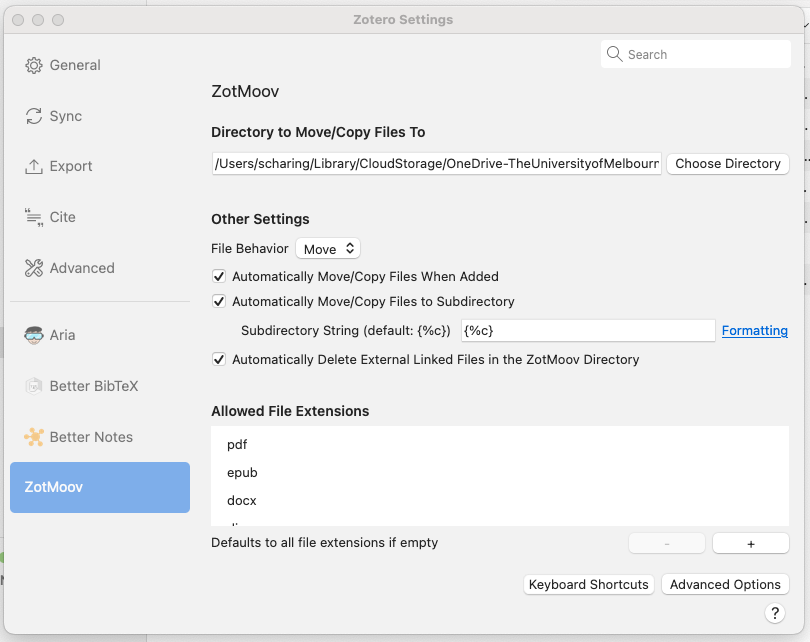
When Zotmoov is installed, the directory to which files are moved can be selected. The location should be the same as your linked file attachment base directory. This means that if you open Zotero and Onedrive (or other cloud location) on another computer, you should still be able to access PDFs.
From Zotero > Settings:
- Click on choose directory and find the location that files should be saved to
- Choose the other settings
- Check the allowed file extensions to ensure all required file types are included.
You can also install Zotmoov in an established Zotero library and select references, then right click to move them to your chosen directory.
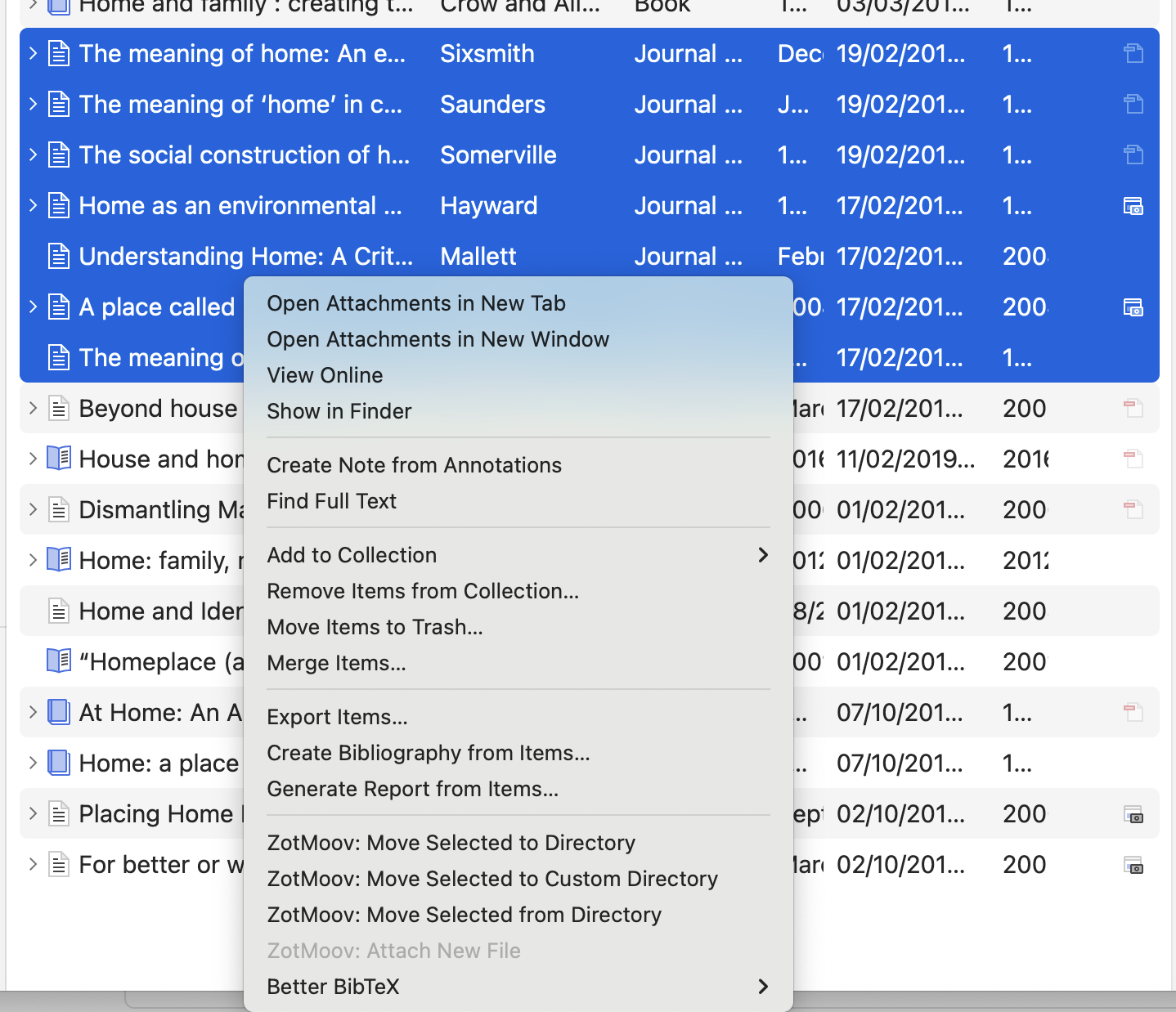
Export options
Create reports
Zotero offers many export options for your references. Select multiple items in the centre column, or select a collection in the left hand column.
Export as spreadsheet, BibTeX, XML, RIS or other file format
After selecting the items you want to export:
- Right-click (ctrl-click on OS X) on your selection and select ‘Export items’
Simple reports
Reports are simple HTML pages that give an overview of the item metadata, notes, and attachments of the selected items. You can print them, post them to the web, and email them. After selecting the items to include in your report:
- Right-click (Mac: ctrl-click) on your selection and select ‘Generate Report from Items’
- A new Zotero window will open which you can print, save or post online.
Reports are sorted alphabetically by title. For options on customising your reports, see the Zotero Reports Documentation.
Quick Copy
You can quickly generate a reference list in Word by highlighting a selection of items in your Zotero library and dragging and dropping (or copying with Ctrl-Shift-C) into an open Word file. Holding Shift while you drag and drop (or using Ctrl-Shift- A) will export citations or footnote style references.
To choose the Citation Style for Quick Copy output, go to Zotero Settings > Export and choose your style from the dropdown menu.
Exporting an entire library
In Zotero, select the ‘File’ menu and choose Export Library from the pull-down menu.
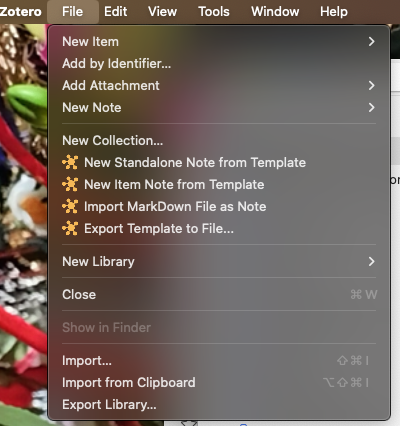
Choose the appropriate file type for your exporting needs:
- RIS allows your citation information and any notes you have made about the item(s) to be exported.
- If you want to export files such as PDFs, then choose BibTeX (this works well with EndNote and Mendeley).
Exporting an individual collection
In the Zotero left pane, right-click on the library you want to export, and choose “Export Collection…”.
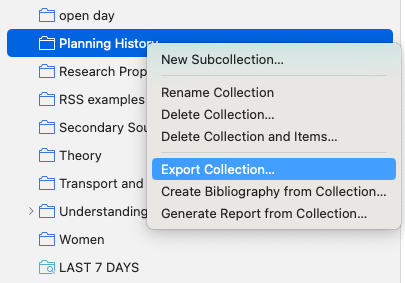
Choose the appropriate file type for your exporting needs:
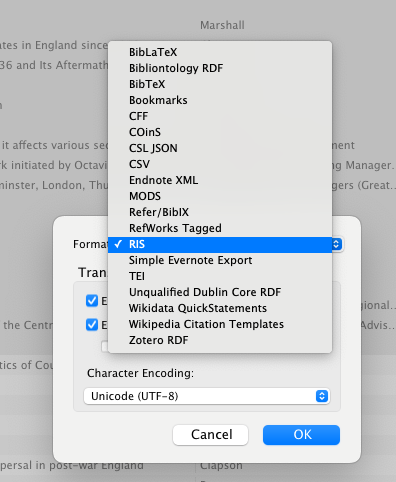
- RIS allows your citation information and any notes you have made about the item(s) to be exported.
- If you want to export files such as PDFs, then choose BibTeX (this works well with EndNote and Mendeley).
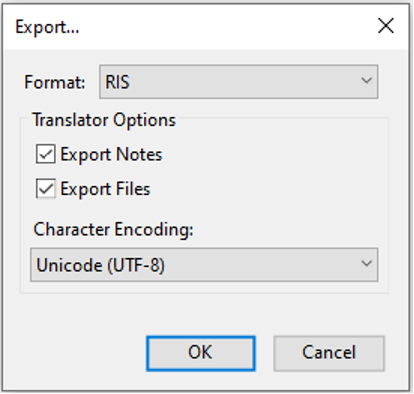
Exporting specific items
In the Zotero centre pane, select the item(s), right-click, and choose “Export Item(s)…”.
Choose the appropriate file type for your exporting needs:
- RIS allows your citation information and any notes you have made about the item(s) to be exported.
- If you want to export files such as PDFs, then choose BibTeX (this works well with EndNote and Mendeley).