Organising references
Using folders, tags, related items, notes and groups can help organise and manage your references. Merging duplicates helps keep your library tidy. Use shared groups for collaborative work.
Folders
Folders and sub-folders in Zotero can be used to organise your materials. These are called collections.
- To create a new collection, go to the folder icon on the far left and click to add. Alternatively, create a new folder by right-clicking in the Library panel and select 'Create new collection'. Name the collection in the pop-up box.
- You can create collections within collections or subfolders. To add a folder within an existing collection, right-click on the folder and select 'New Sub collection' and typing in a name.
- Add items to collections by dragging and dropping them into the folder. Remove items from folders by right-clicking and selecting 'Remove Item from Collection'. This will not delete the item from your library.
- Rename collections or subfolders at any time by right-clicking on a folder and selecting 'Rename Collection'.
Tags
Tagging items in your library is a useful way to categorise your items by keywords/subject headings, or actions to carry out, like 'to read'. You can then use these tags to sort and search your library.
To find items easily by tags, it is a good idea to identify some 'tag rules' before you start tagging. This will avoid keyword duplication with upper/lower cases and alternative spellings.
Create tags
To view, add and remove tags, select an item in your library and click on the Tags icon. Items downloaded from a database or catalogue may come with tags already attached. You can add your own tags or delete existing tags.

Automatic tags
Additional 'automatic' tags may come across with an item when you import it from a website or database. Amend your settings if you do not want Zotero to automatically tag items with keywords and subject headings.

Display items by tag
Tags in your library are displayed in the panel below the Collection folders (see green box in below image). If you have a collection folder selected, this panel will only display the tags within that collection.
Clicking on a tag will display all items tagged with that term. You can choose more than one tag to show items with that combination of tags.

Filter tags
Select Filter Tags in the tag panel to show automatic tags, or delete them. You can use the 'Filter Tags' search bar to find tags by keyword.
Bulk tagging
To tag many items at once, select the records in the middle panel and drag the highlighted records on to the tag in the left tag window.
Edit tags
To rename a tag, select the tag in the tag pane, right click and select rename. All items assigned to the tag will be updated with the new name. If you use an emoji in the tag, this will be displayed alongside item titles in your library.
You can colour code up to nine tags, this will add a coloured dot to the item in the middle panel. To change your colour to an emoji, select a coloured tag, right click and rename with an emoji preceding the title.
Related items
As well as collections and tags, you can connect items in a library by setting up 'relations'.
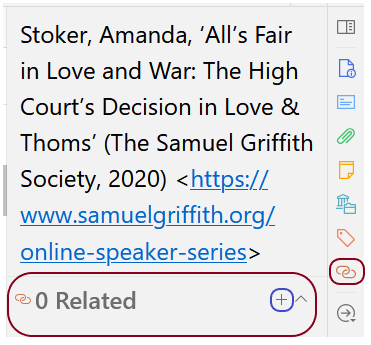
View relation: select an item in the centre pane and select the 'Related' chain link icon from the right icon menu in Zotero.
Create relation: Click the + icon to add related items. Select one or more items from the same library in the pop-up window. Select multiple items by holding down Ctrl or Shift (Windows) or Cmd or Shift (Mac) and click 'OK'.

Utilise relation: The selected items will now show up as related items in the 'Related' pane. Select an item in the related items pane to view the connected item in your Zotero library.

You can use this feature to:
- connect book chapters to their parent volume
- connect book reviews to the book reviewed
- connect different versions of a work
- link an article to articles that have cited it
Create and join groups
To create a shared group, first click File > New Library > New Group

You will be taken to the Zotero website to create the group.
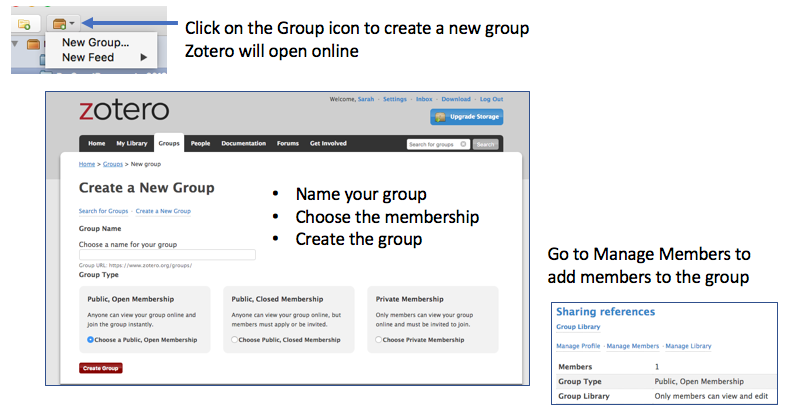
To join a group:
- Click on search for groups
- Add a keyword
- Find a group
Managing duplicate items
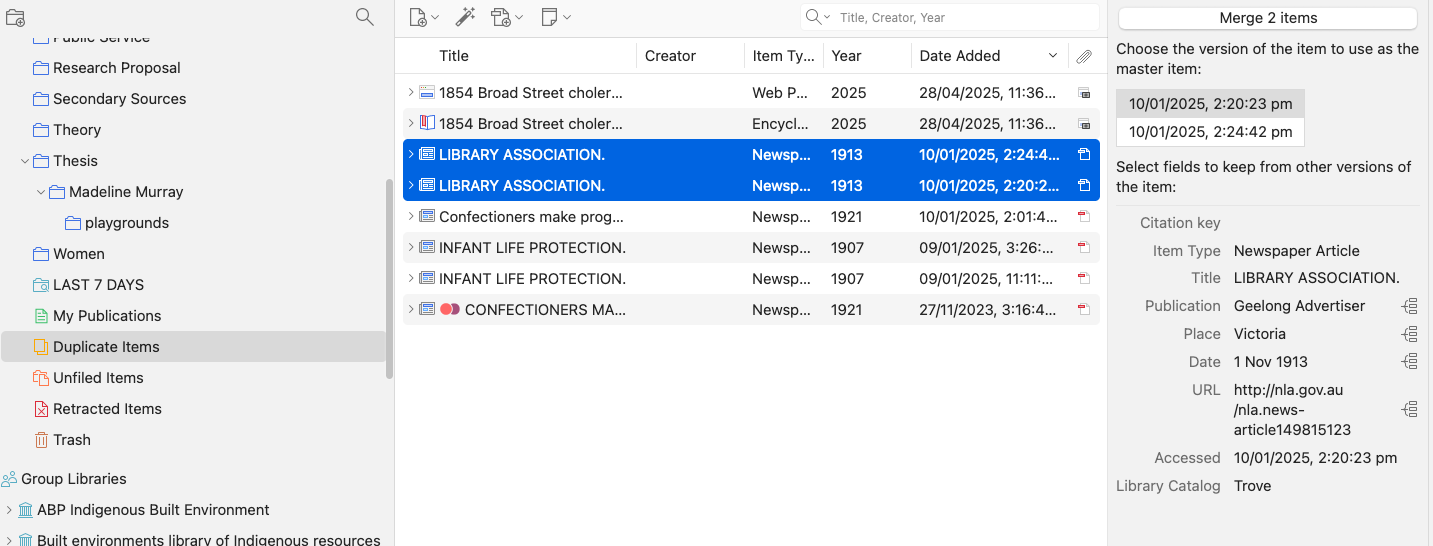
If you have duplicate items, Zotero will automatically place them in a " Duplicate items" collection at the bottom of the left hand pane.
Zotero matches items on title, DOI or ISBN.
You will be promted to merge the duplicate items. Check each record to determine which should be the master record (ie most complete).
Watch a video: Organising your library
Watch a video: Searching your library
Watch a video: Manage your library
Transcript