Notes and annotations
Record your thoughts and highlight text. Import them into your documents.
Annotations
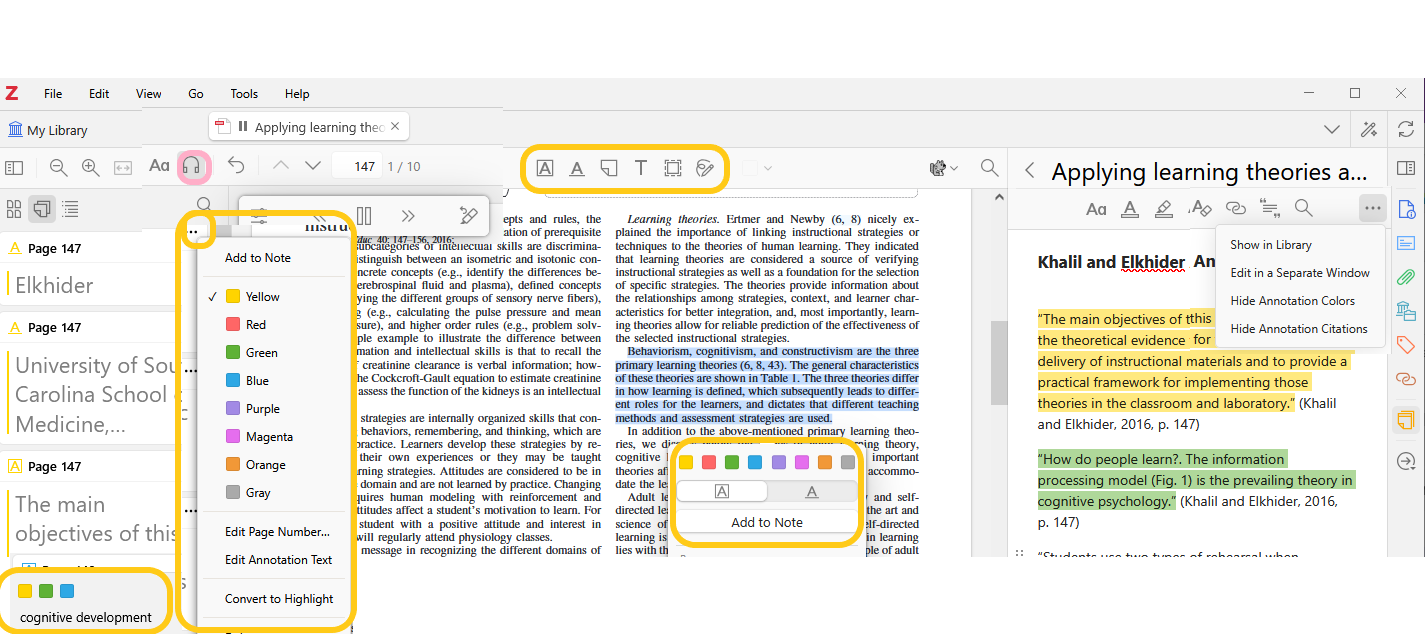
To annotate a PDF in your Zotero library, double click the PDF to open in the PDF reader.
When nothing is selected the reader will be in a default unlocked mode. Text selected in this mode will generate a pop up for the user to choose a highlight or underline colour. There's also an option here to automatically add the annotation to a note.
If making many annotations, click on the highlight or underline icons in the top tool bar and select a colour. Now in locked mode, when you select text in the pdf it will annotate according to colour and annotation type chosen.
If using Zotero's 'Read Aloud' function (headphones icon in top menu bar), select the Annotate Sentence button to automatically highlight or underline the last sentence you heard. Shortcuts appear in the pop up to edit the annotation (eg. move, extend, delete or change colour).
Use the three dot menu in the Anotations pane to add or change the colour of your annotations.
View the colours and tags of your annotations at the bottom of the Annotations pane. Select a colour or tag to only view annotations of the colour selected.
Notes
You can create new notes by selecting an item in your Zotero library > right click > Add Note or add Note from Annotations. Notes and annotations from notes can also be created from within the PDF reader.
Within PDF Reader, select the Notes icon in the right hand menu to open the Notes pane, where you can create a new note or open an existing note. It isi a good idea to give your note a heading that you can use to find it later on.

To create a new note from all annotations in the current PDF, click one of the “+” buttons and select Add Item Note from Annotations. Automatic headings can be edited in the Notes pane.
.
If you already have a note open in the Notes pane, you can drag individual annotations from the PDF or from Annotations tab in the left-hand sidebar as you type your note. Alternatively, you can select one or more annotations in PDF or in the the Annotations tab of the left-hand sidebar, right-click one of the annotations, and select Add to Note.

When Show Annotation Colors is selected from the Notes pane menu (three dots), the annotated colours are visible. These will also appear when the annotations are exported to a Word document. From this menu you can also select to Edit in separate window.
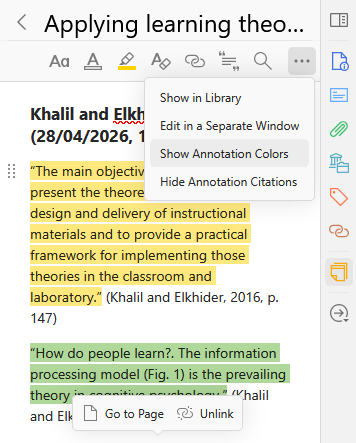
You can drag annotations from the PDF reader to a note that's opened in a separate window.

If you're sure you won't use a quote more than once, it's also possible to add quotes to Zotero notes without creating an annotation first. Simply select text in the PDF and drag it to an open Zotero note.

Annotations added to notes aren’t just plain text: they include information about the source PDF that lets you quickly jump back to the original page to see context, generate bibliography entries using Zotero’s word processor plugins, toggle annotation colours on and off, include links back to Zotero when exporting to Markdown, and even restore accidentally deleted citations to make sure you’ve properly attributed a quote.
Adding annotations to documents
Zotero allows you to add annotations directly to a document using the Word Processor plugin.
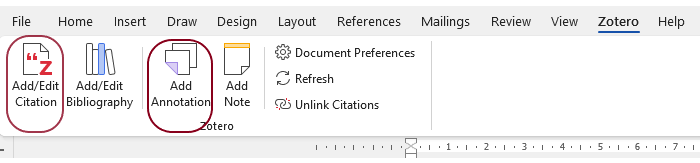
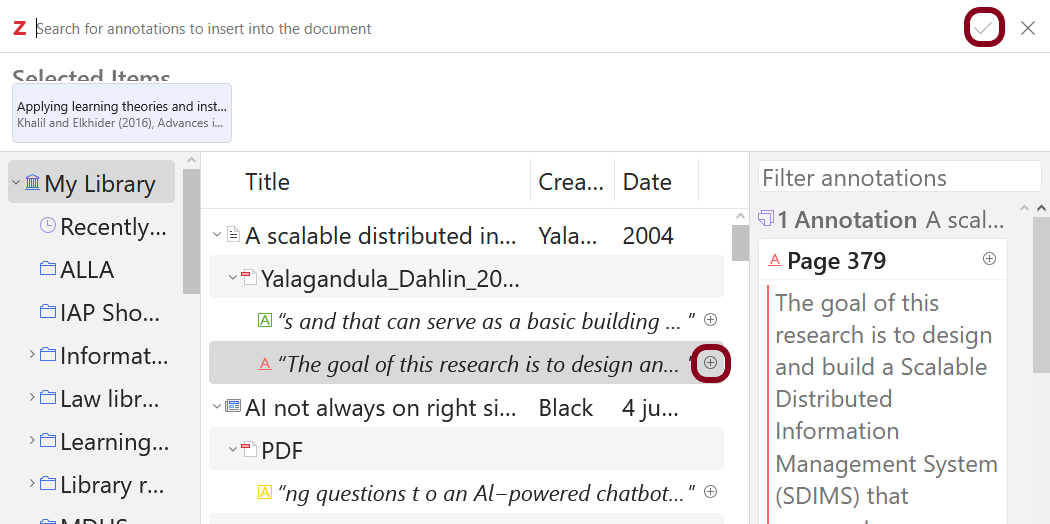
In your document, place your cursor where you would like the annotation to appear, select the Add Annotation icon in the Word Processor ribbon (Zotero tab). An item already selected in Zotero will appear in the pop up, alternatively, browse or search for the annotation.
Click the plus icon beside the annotation to select it, then the tick icon to add to your document. Your annotation will then appear in the document with corresponding citation.
To add the annotation as a citation, select Add/Edit citation and follow the steps above.
Adding notes to documents
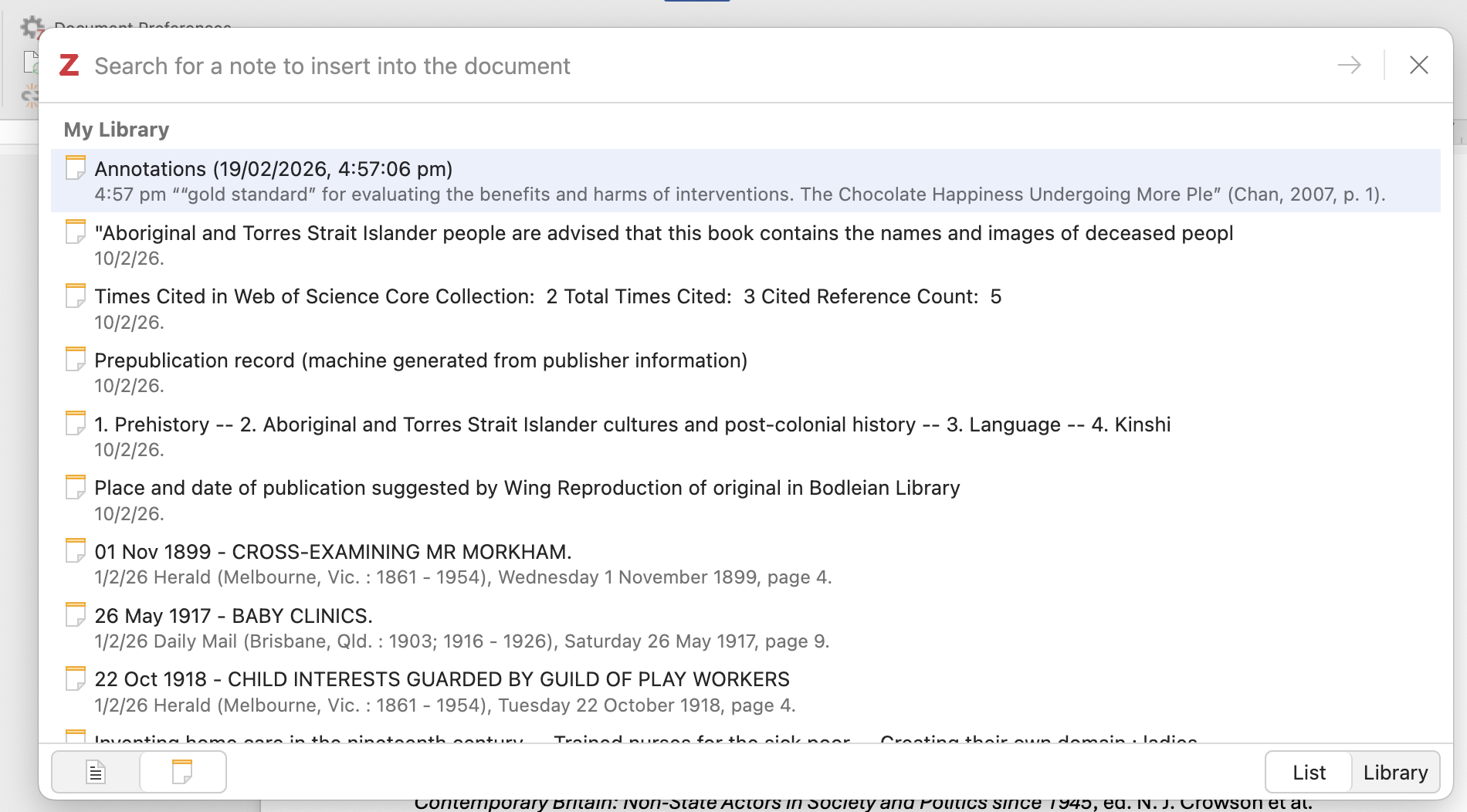
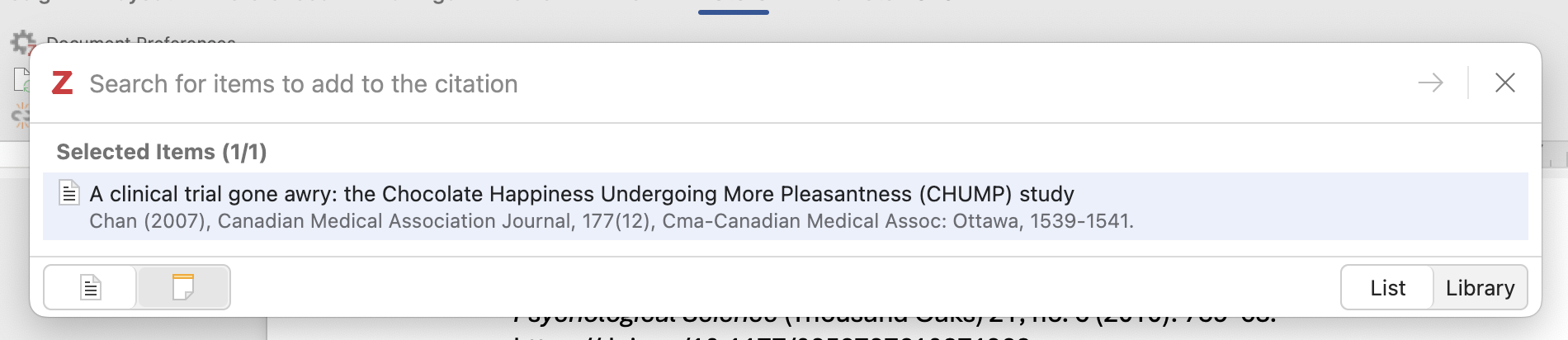
Zotero allows you to add notes directly to a document. You can add notes either by selecting Add Note or Add/Edit citation > Note icon.

Search for the note you want to add to your document. Use arrow or tick icon to add selected note.
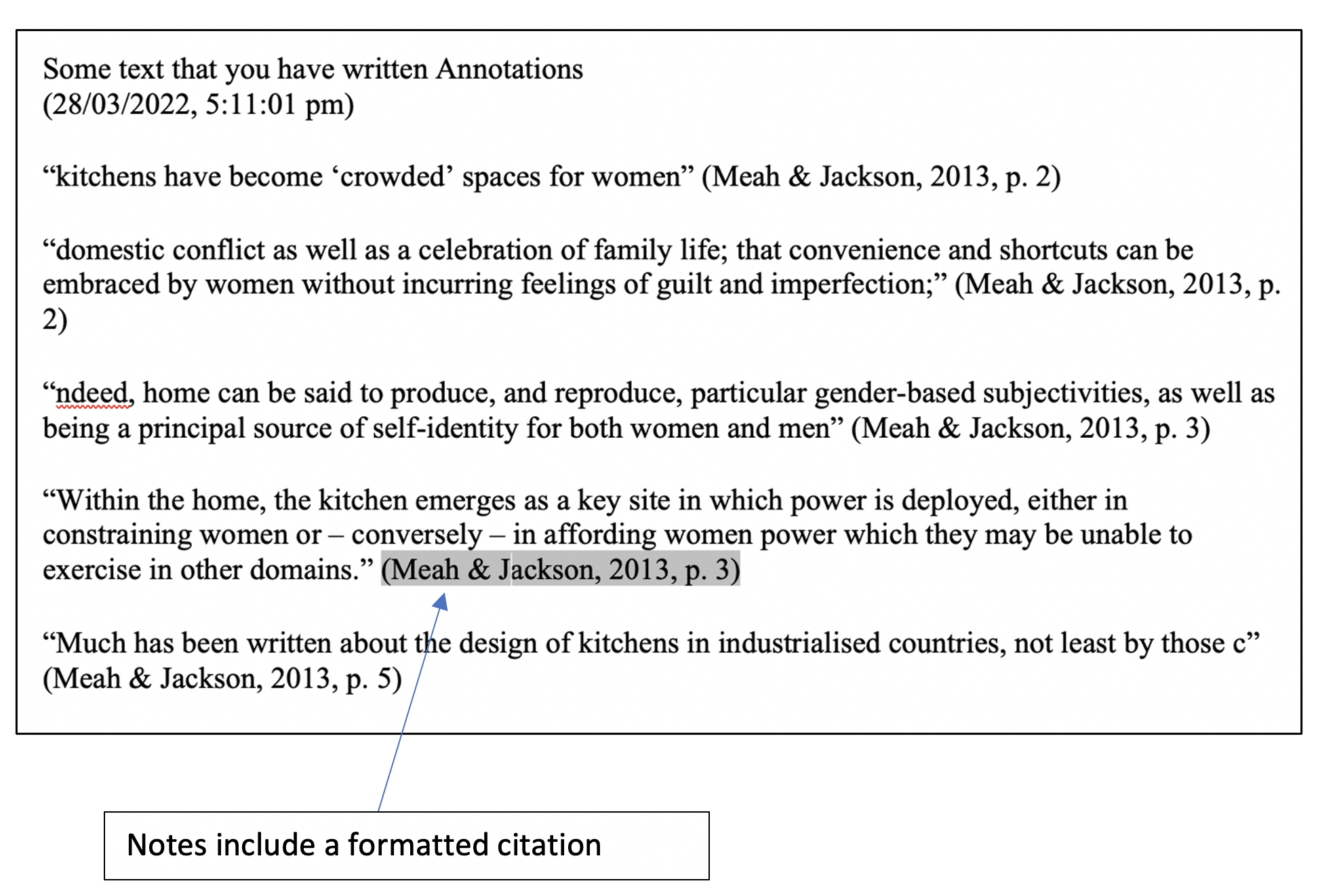
The notes are inserted into the document, with formatted citations.
You can save images in Notes, add a citation to the image in the note, and create captions that you can use for referencing images in your work.
Putting images in notes
Adding image from a file: Place cursor in a new or existing note > Right click > Insert image > Select image from Files > Open. The image will appear in the Note.
Adding image attached to an item in your Zotero library: Images can be added as an attachment to an item in your Zotero library. Select the item > right click > Add attachment > Select saved image file. To use this attachment in a note, use the Notes menu (three dots) to open a note in a separate window. Drag the image attachment to the note.
Adding image from PDF: Images within PDFs can also be created as an annotation. Use the Select tool located in the PDF reader's annotation menu to select the image in the PDF. This can then be dragged to a Note. In this instance, the citation will also be added to the note.
Add text and citation to images in notes
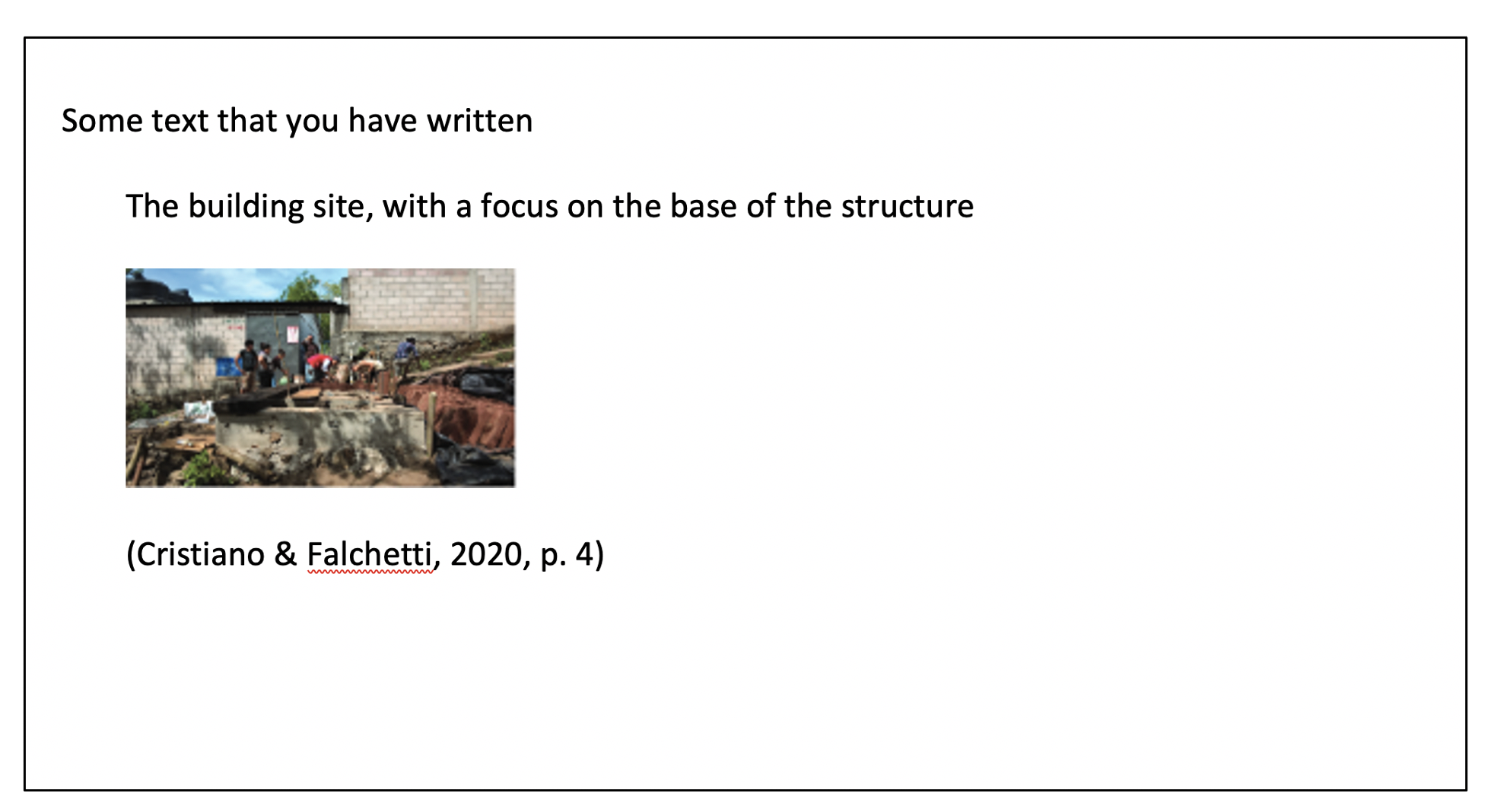
In the Notes pane, place your cursor above the image inserted and write the title of your image. Add any caption beneath the image in the note.
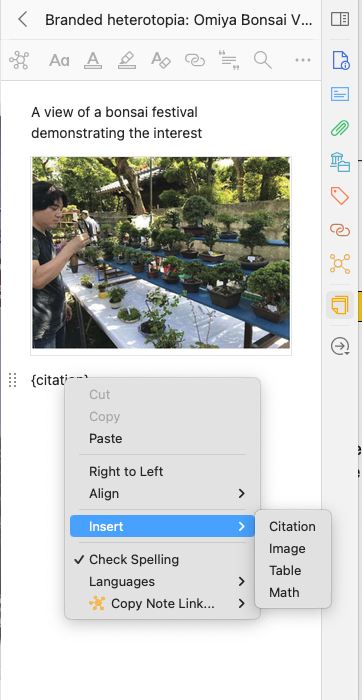
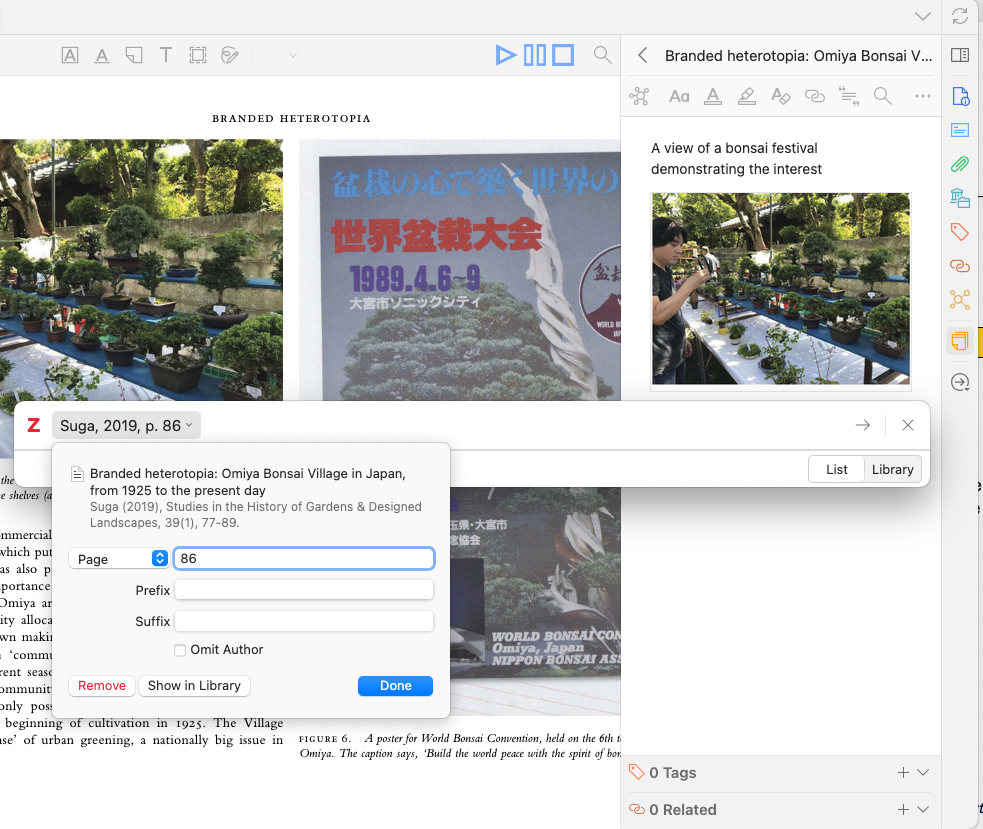
To add a citation, place your cursor beneath the image > Right click > select Insert > Citation > search for the item in your Zotero library that correlates with the image > add a page number and click on the right arrow (or tick) to add to your note.
Insert image and details to your document
Add the note to your document as per Adding Notes to Documents instructions above.
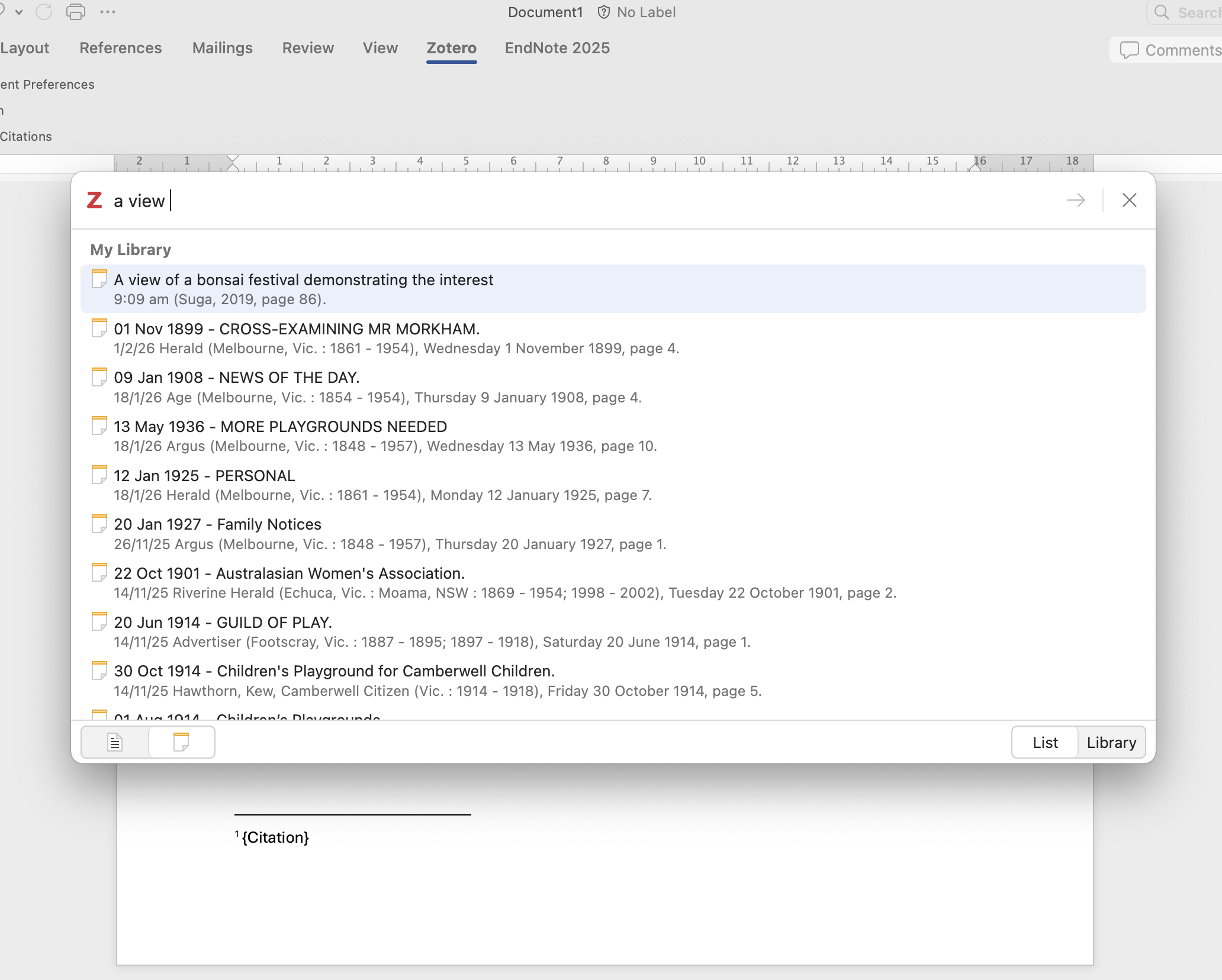
Zotero will insert the caption, image and citation into your document.