Use the iOS app
Using the Zotero iOS app
Add items to your Zotero library
There are a number of options for adding items to your Zotero library in the iOS app.
1. Add Items Manually:
- Tap the plus sign (+) in the upper right corner of the Zotero app.
- Select the type of item you want to add (e.g., Journal Article, Book, Website).
- Enter the required information into the fields provided.
- You can also attach files like PDFs or images.
2. Use the Safari Sharing Function:
- Open the article or item you want to save in Safari.
- Tap the Share button.
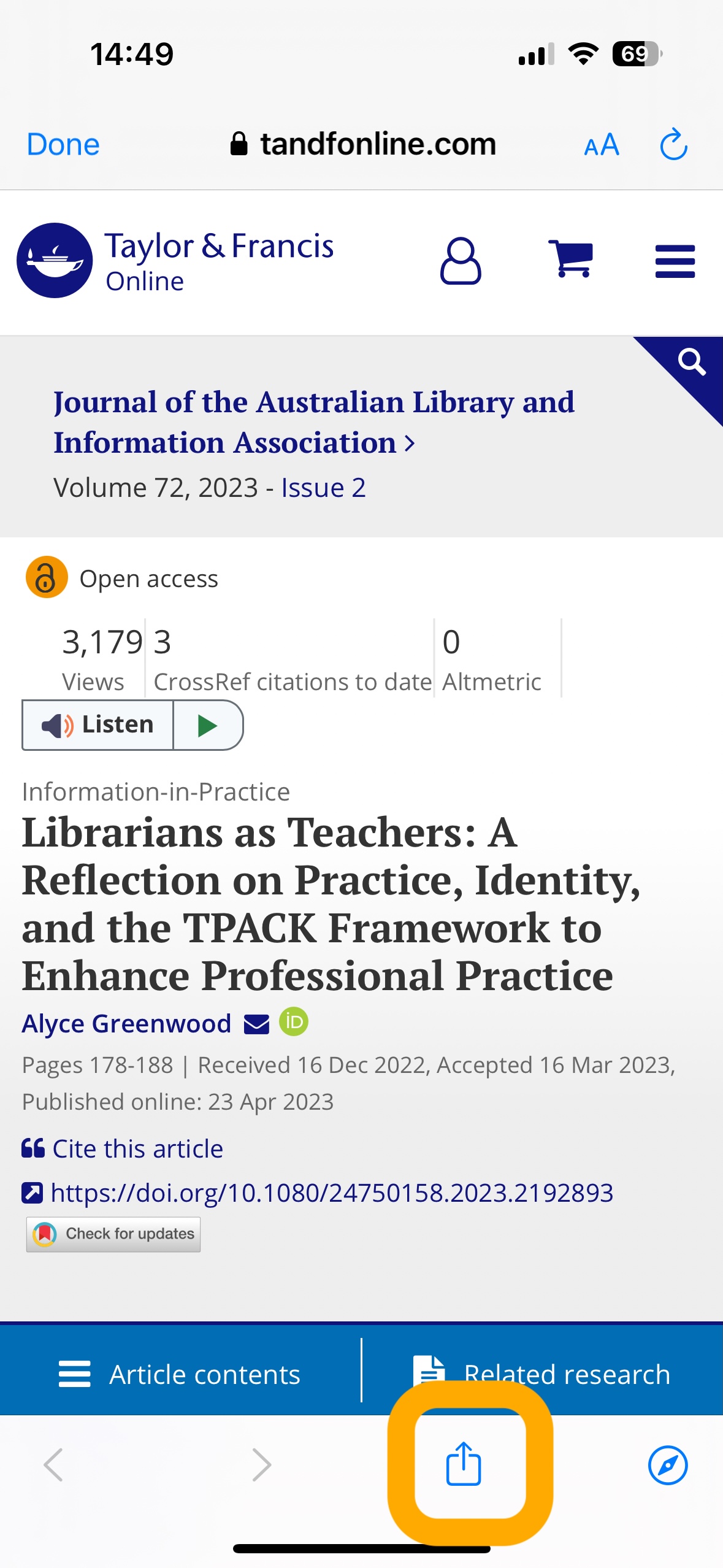
- Scroll to the Zotero app and tap on it.
- Select the folder where you want to save the item and tap "Save to Zotero".

3. Save by Identifier (DOI, ISBN, etc.):
- Open the Zotero app.
- Tap the "Add Item by Identifier" button.

- Enter the DOI, ISBN, or other identifier and press Enter.
- Zotero will then look up the metadata and add the item to your library.
Note: it is possible to scan the barcode of books to add them to your library.
- From the adding items menu, select Scan barcode
- Scan the barcode from the back cover of a book
- Select the item

4. Add PDFs:
- You can add PDFs to your Zotero library by dragging and dropping them into the Zotero app.
- Zotero will automatically try to find metadata for the PDF.
- If Zotero cannot find metadata, you can manually create a parent item and link the PDF to it.
Adding citations and references to a document
- To select an item to cite or add to reference list, either open full text and select the writing icon OR tap and hold an item from your collection list and select the relevant option
- Paste the citation or reference into your document
- Edit if necessary
